If your browser supports Javascript and Javascript is not disabled, you can solve the puzzle online interactively.
Appearance:
Cell with a mine Cell with a two mines Cell with a buoy (neighbouring four mines) Cell on which there is certainly no mine. Marking cells without a mine with a cross is optional.
Solve puzzles:
Left-click: Changes the cell content: cross, one mine, two mines, empty cell. Left-drag: Copies the cell content: cross, one mine, two mines, empty cell. Rigt-click: Dropdown menu → Markers. Tap: Changes the cell content: cross, one mine, two mines, empty cell. Drag: Dropdown menu → Markers. Hold: Copies the cell content. Use the arrow keys to move the selection frame to a cell, then: Enter,Spacebar, Ins: Changes the cell content: cross, one mine, two mines, empty cell. Shift+Arrow Keys: Copies the cell content: cross, one mine, two mines, empty cell.
Select a value directly with one of the following keys:
Value
Keys
One mine
A, ., O
Two mines
2
Cross
S, ,, X
Emty cell
D, /, - , Del, Backspace
The selection frame is only displayed when you work with the keyboard, i.e., after pressing one of the arrow keys, and hides again when you work with the mouse. Move the mouse pointer over a cell (do not click!) and choose the required value directly with the keyboard, as described above.
Error marking:
or F6 key marks all errors, i.e., violations of the rules, in red.
Symbol marking:
Permanent:
turn on the marking mode and select the symbol (〇, ▢, •, ⛭, ✕, a, b, c, d) to be entered in the subsequently selected cells.
Single cell:
Select a cell with the arrow keys, then Ctrl+Q, W, E, R, X, A, B, C, D. Right-click, then select symbol in the drop-down menu. Hold the finger and select symbol in the drop-down menu.
Colour marking:
Permanent:
selects the colour with which subsequent moves are marked. Combination of Alt+0 to Alt+9 select the colour with which subsequent moves are marked.
Single cell:
Select a cell with the arrow keys, then Ctrl+0 to Ctrl+9. Right-click, then select colour in the drop-down menu. Hold the finger and select colour in the drop-down menu.
Features:
or Home cancels all moves. PgDn or Ctrl+Z cancels a move. PgUp or Ctrl+Y restores a cancelled move. or End restores all cancelled moves. or Ctrl+S saves the current savegame. or Ctrl+L loads a previously saved savegame. or F3 switches the hint mode on and off again. In hint mode, the correct value is entered in the following selected cells. or F4 enters the solution in the grid and, if available, the solution path in the move list.
Enlarge/reduce the puzzle:
The puzzle can be zoomed in/out within the window: Left-click or tap: Select cell size. Rght-click or hold: Fit the puzzle to the window size ("auto"). Drag with two fingers: the grid size follows the distance between the two fingers. Ctrl+Arrow keys.
Moving the puzzle:
This is only possible if the puzzle is larger than the window or screen. Use the scrollbars. Drag with two fingers: the grid follows the finger movement. Alt+Arrow keys.
Info:
or F1 shows information about the puzzle in a separate window. It contains, among other things, the current score and the sequence of moves that led to it.
Correct solution:
If you have solved the puzzle correctly, a green frame is automatically displayed around the grid.
If your browser supports Javascript and Javascript is not disabled, you can solve the puzzle online interactively.
Solve puzzles:
Left-click: Changes the cell content: ?, x, L, I, T, S, empty cell. Left-drag: Copies the cell content: ?, x, L, I, T, S, empty cell. Tap: Changes the cell content: ?, x, L, I, T, S, empty cell. Hold: Copies the cell content. Use the arrow keys to move the selection frame to a cell, then: Enter,Spacebar, Ins: Changes the cell content: black circle, white circle, empty cell. Shift+Arrow Keys: Copies the cell content: black circle, white circle, empty cell.
Select a symbol directly with one of the following keys:
Symbol
Keys
L
L
I
I
T
T
S
S
?
?, O, A, Ins
x
X
Empty cell
Space , Del, Backspace
The selection frame is only displayed when you work with the keyboard, i.e., after pressing one of the arrow keys, and hides again when you work with the mouse. Move the mouse pointer over a cell (do not click!) and choose the required value directly with the keyboard, as described above.
Error marking:
or F6 key marks all errors, i.e., violations of the rules, in red. If the white or black circles form several disjoint areas, each area is displayed in a different colour.
Symbol marking:
Permanent:
turn on the marking mode and select the symbol (〇, ▢, •, ⛭, ✕, a, b, c, d) to be entered in the subsequently selected cells.
Single cell:
Select a cell with the arrow keys, then Ctrl+Q, W, E, R, X, A, B, C, D. Right-click, then select symbol in the drop-down menu. Hold the finger and select symbol in the drop-down menu.
Colour marking:
Permanent:
selects the colour with which subsequent moves are marked. Combination of Alt+0 to Alt+9 select the colour with which subsequent moves are marked.
Single cell:
Select a cell with the arrow keys, then Ctrl+0 to Ctrl+9. Right-click, then select colour in the drop-down menu. Hold the finger and select colour in the drop-down menu.
Features:
or Home cancels all moves. PgDn or Ctrl+Z cancels a move. PgUp or Ctrl+Y restores a cancelled move. or End restores all cancelled moves. or Ctrl+S saves the current savegame. or Ctrl+L loads a previously saved savegame. or F3 switches the hint mode on and off again. In hint mode, the correct value is entered in the following selected cells. or F4 enters the solution in the grid and, if available, the solution path in the move list.
Enlarge/reduce the puzzle:
The puzzle can be zoomed in/out within the window: Left-click or tap: Select cell size. Rght-click or hold: Fit the puzzle to the window size ("auto"). Drag with two fingers: the grid size follows the distance between the two fingers. Ctrl+Arrow keys.
Moving the puzzle:
This is only possible if the puzzle is larger than the window or screen. Use the scrollbars. Drag with two fingers: the grid follows the finger movement. Alt+Arrow keys.
Info:
or F1 shows information about the puzzle in a separate window. It contains, among other things, the current score and the sequence of moves that led to it.
Correct solution:
If you have solved the puzzle correctly, a green frame is automatically displayed around the grid.
If your browser supports Javascript and Javascript is not disabled, you can solve the puzzle online interactively.
Solve puzzles:
Left-click: Changes the cell content: black division, cross, neutral. Left-drag: Copies the cell content. Right-click: Dropdown menu → Markers. Tap: Changes the cell content:: black division, cross, neutral. Drag: Dropdown menu → Markers. Hold: Copies the cell content. Use the arrow keys to move the selection frame to a cell, then: Enter,Spacebar, Ins: Changes the cell content: black division, cross, neutral. Shift+Arrow Keys: Copies the cell content.
Select a colour directly with one of the following keys:
Colour
Keys
Black division
A, .
Cross
S, ,
Neutral
D, /, - , Del, Backspace
The selection frame is only displayed when you work with the keyboard, i.e., after pressing one of the arrow keys, and hides again when you work with the mouse. Move the mouse pointer over a cell (do not click!) and choose the required value directly with the keyboard, as described above.
Error marking:
or F6 key marks all errors, i.e., violations of the rules, in red. If the black cells do not form a single orthogonally contiguous area, each sub-area is coloured differently.
Symbol marking:
Permanent:
turn on the marking mode and select the symbol (〇, ▢, •, ⛭, ✕, a, b, c, d) to be entered in the subsequently selected cells.
Single cell:
Select a cell with the arrow keys, then Ctrl+Q, W, E, R, X, A, B, C, D. Right-click, then select symbol in the drop-down menu. Hold the finger and select symbol in the drop-down menu.
Colour marking:
Permanent:
selects the colour with which subsequent moves are marked. Combination of Alt+0 to Alt+9 select the colour with which subsequent moves are marked.
Single cell:
Select a cell with the arrow keys, then Ctrl+0 to Ctrl+9. Right-click, then select colour in the drop-down menu. Hold the finger and select colour in the drop-down menu.
Features:
or Home cancels all moves. PgDn or Ctrl+Z cancels a move. PgUp or Ctrl+Y restores a cancelled move. or End restores all cancelled moves. or Ctrl+S saves the current savegame. or Ctrl+L loads a previously saved savegame. or F3 switches the hint mode on and off again. In hint mode, the correct value is entered in the following selected cells. or F4 enters the solution in the grid and, if available, the solution path in the move list.
Enlarge/reduce the puzzle:
The puzzle can be zoomed in/out within the window: Left-click or tap: Select cell size. Rght-click or hold: Fit the puzzle to the window size ("auto"). Drag with two fingers: the grid size follows the distance between the two fingers. Ctrl+Arrow keys.
Moving the puzzle:
This is only possible if the puzzle is larger than the window or screen. Use the scrollbars. Drag with two fingers: the grid follows the finger movement. Alt+Arrow keys.
Info:
or F1 shows information about the puzzle in a separate window. It contains, among other things, the current score and the sequence of moves that led to it.
Correct solution:
If you have solved the puzzle correctly, a green frame is automatically displayed around the grid.
If your browser supports Javascript and Javascript is not disabled, you can solve the puzzle online interactively.
Solve puzzles:
Left-click: Selects values in sequence (→, ↑, ↓, ←, empty cell). Right-click: Dropdown menu → Values. Tap: Selects values in sequence (→, ↑, ↓, ←, empty cell).. Hold: Dropdown menu → Values. Use the arrow keys to move the selection frame to a cell, then: Enter,Spacebar, Ins: Changes the value of the cell: Selects values in sequence (→, ↑, ↓, ←, empty cell)..
Select a value directly with one of the following keys:
Value
Keys
↑
N
↓
S
←
W
→
E
Emty cell
/, - , Del, Backspace
The selection frame is only displayed when you work with the keyboard, i.e., after pressing one of the arrow keys, and hides again when you work with the mouse. Move the mouse pointer over a cell (do not click!) and choose the required value directly with the keyboard, as described above.
Error marking:
or F6 key marks all errors, i.e., violations of the rules, in red.
Symbol marking:
Permanent:
turn on the marking mode and select the symbol (〇, ▢, •, ⛭, ✕, a, b, c, d) to be entered in the subsequently selected cells.
Single cell:
Select a cell with the arrow keys, then Ctrl+Q, W, E, R, X, A, B, C, D. Right-click, then select symbol in the drop-down menu. Hold the finger and select symbol in the drop-down menu.
Colour marking:
Permanent:
selects the colour with which subsequent moves are marked. Combination of Alt+0 to Alt+9 select the colour with which subsequent moves are marked.
Single cell:
Select a cell with the arrow keys, then Ctrl+0 to Ctrl+9. Right-click, then select colour in the drop-down menu. Hold the finger and select colour in the drop-down menu.
Features:
or Home cancels all moves. PgDn or Ctrl+Z cancels a move. PgUp or Ctrl+Y restores a cancelled move. or End restores all cancelled moves. or Ctrl+S saves the current savegame. or Ctrl+L loads a previously saved savegame. or F3 switches the hint mode on and off again. In hint mode, the correct value is entered in the following selected cells. or F4 enters the solution in the grid and, if available, the solution path in the move list.
Enlarge/reduce the puzzle:
The puzzle can be zoomed in/out within the window: Left-click or tap: Select cell size. Rght-click or hold: Fit the puzzle to the window size ("auto"). Drag with two fingers: the grid size follows the distance between the two fingers. Ctrl+Arrow keys.
Moving the puzzle:
This is only possible if the puzzle is larger than the window or screen. Use the scrollbars. Drag with two fingers: the grid follows the finger movement. Alt+Arrow keys.
Info:
or F1 shows information about the puzzle in a separate window. It contains, among other things, the current score and the sequence of moves that led to it.
Correct solution:
If you have solved the puzzle correctly, a green frame is automatically displayed around the grid.
If your browser supports Javascript and Javascript is not disabled, you can solve the puzzle online interactively.
Appearance:
Cell with a star. A cell on which there is certainly no lamp. Marking cells without a lamp with a cross is optional. Illuminated cells are shown in yellow; non-illuminated cells are shown in white.
Solve puzzles:
Left-click: Changes the value of the cell: star, cross, or empty cell. Tap: Changes the value of the cell: lamp, cross, or empty cell. Use the arrow keys to move the selection frame to a cell, then: Enter,Spacebar, Ins: Changes the colour of the cell: black, white, neutral.
Select a value directly with one of the following keys:
Value
Keys
Star
A, ., O
Cross
S, ,, X
Emty cell
D, /, - , Del, Backspace
The selection frame is only displayed when you work with the keyboard, i.e., after pressing one of the arrow keys, and hides again when you work with the mouse. Move the mouse pointer over a cell (do not click!) and choose the required value directly with the keyboard, as described above.
Error marking:
or F6 key marks all errors, i.e., violations of the rules, in red. If the white cells form several disjoint areas, each area is displayed in a different colour. Neighbouring black cells are marked with a red dot. If the path between two circle cells does not turn orthogonally at least twice, the affected circles are circled in red.
Symbol marking:
Permanent:
turn on the marking mode and select the symbol (〇, ▢, •, ⛭, ✕, a, b, c, d) to be entered in the subsequently selected cells.
Single cell:
Select a cell with the arrow keys, then Ctrl+Q, W, E, R, X, A, B, C, D. Right-click, then select symbol in the drop-down menu. Hold the finger and select symbol in the drop-down menu.
Colour marking:
Permanent:
selects the colour with which subsequent moves are marked. Combination of Alt+0 to Alt+9 select the colour with which subsequent moves are marked.
Single cell:
Select a cell with the arrow keys, then Ctrl+0 to Ctrl+9. Right-click, then select colour in the drop-down menu. Hold the finger and select colour in the drop-down menu.
Features:
or Home cancels all moves. PgDn or Ctrl+Z cancels a move. PgUp or Ctrl+Y restores a cancelled move. or End restores all cancelled moves. or Ctrl+S saves the current savegame. or Ctrl+L loads a previously saved savegame. or F3 switches the hint mode on and off again. In hint mode, the correct value is entered in the following selected cells. or F4 enters the solution in the grid and, if available, the solution path in the move list.
Enlarge/reduce the puzzle:
The puzzle can be zoomed in/out within the window: Left-click or tap: Select cell size. Rght-click or hold: Fit the puzzle to the window size ("auto"). Drag with two fingers: the grid size follows the distance between the two fingers. Ctrl+Arrow keys.
Moving the puzzle:
This is only possible if the puzzle is larger than the window or screen. Use the scrollbars. Drag with two fingers: the grid follows the finger movement. Alt+Arrow keys.
Info:
or F1 shows information about the puzzle in a separate window. It contains, among other things, the current score and the sequence of moves that led to it.
Correct solution:
If you have solved the puzzle correctly, a green frame is automatically displayed around the grid.
If your browser supports Javascript and Javascript is not disabled, you can solve the puzzle online interactively.
Appearance:
Default numbers/letters (which cannot be changed) are shown in colours other than black; the numbers you enter are shown in black colour. The dropdown menu contains the symbol "🅇" (clear cell).
Solve puzzles:
Left-click (cell): Dropdown menu → Values. Left-click (line): Border → Cross → Grid. Left-drag (cells): Copy value. Left-drag (lines): Copy line. Right-click (cell): Dropdown menu → Markers. Tap (cell): Dropdown menu → Values. Tap (line): Border → Cross → Grid. Drag (cells): Copy value. Drag (lines): Copy line. Hold (cell): Dropdown menu → Markers. Use the arrow keys to move the selection frame to a cell, then: Shift+Arrow keys: Copies the value of the cell. Delete or Backspace key: Empty cell.
Change the value directly with one of the following keys:
Value
Keys
Number
Numeric keys
Clear cell
0, X, - , Del, Backspace
The selection frame is only displayed when you work with the keyboard, i.e., after pressing one of the arrow keys, and hides again when you work with the mouse. Move the mouse pointer over a cell (do not click!) and choose the required value directly with the keyboard, as described above. The line display has no influence on the solution; only the values of the cells count for the solution.
Error marking:
or F6 key marks all errors, i.e., violations of the rules, in red.
Symbol marking:
Permanent:
turn on the marking mode and select the symbol (〇, ▢, •, ⛭, ✕, a, b, c, d) to be entered in the subsequently selected cells.
Single cell:
Select a cell with the arrow keys, then Ctrl+Q, W, E, R, X, A, B, C, D. Right-click, then select symbol in the drop-down menu. Hold the finger and select symbol in the drop-down menu.
Colour marking:
Permanent:
selects the colour with which subsequent moves are marked. Combination of Alt+0 to Alt+9 select the colour with which subsequent moves are marked.
Single cell:
Select a cell with the arrow keys, then Ctrl+0 to Ctrl+9. Right-click, then select colour in the drop-down menu. Hold the finger and select colour in the drop-down menu.
Features:
or Home cancels all moves. PgDn or Ctrl+Z cancels a move. PgUp or Ctrl+Y restores a cancelled move. or End restores all cancelled moves. or Ctrl+S saves the current savegame. or Ctrl+L loads a previously saved savegame. or F3 switches the hint mode on and off again. In hint mode, the correct value is entered in the following selected cells. or F4 enters the solution in the grid and, if available, the solution path in the move list.
Enlarge/reduce the puzzle:
The puzzle can be zoomed in/out within the window: Left-click or tap: Select cell size. Rght-click or hold: Fit the puzzle to the window size ("auto"). Drag with two fingers: the grid size follows the distance between the two fingers. Ctrl+Arrow keys.
Moving the puzzle:
This is only possible if the puzzle is larger than the window or screen. Use the scrollbars. Drag with two fingers: the grid follows the finger movement. Alt+Arrow keys.
Info:
or F1 shows information about the puzzle in a separate window. It contains, among other things, the current score and the sequence of moves that led to it.
Correct solution:
If you have solved the puzzle correctly, a green frame is automatically displayed around the grid.
If your browser supports Javascript and Javascript is not disabled, you can solve the puzzle online interactively.
Appearance:
An arrow stands alone. A cross marks a field that definitely does not contain an arrow. A circle a field that definitely contains an arrow, but whose orientation is still unknown.
Solve puzzles:
Left-click: Dropdown menu → Select the desired arrows, cross, or circle. Rigt-click: Dropdown menu → Markers. Tap: Dropdown menu → Select the desired arrows, cross, or question circle. Hold: Dropdown menu → Markers. Use the arrow keys to move the selection frame to a cell, then: Enter,Spacebar, Ins: Changes the cell content: desired arrows, cross, or circle. Shift+Arrow Keys: Copies the cell content.
Select a symbol directly with one of the following keys:
Symbol
Keys
Arrows
N, S, W, E
Circle
?, ., O
Cross
X, ,
Empty cell
/, - , Del, Backspace
The selection frame is only displayed when you work with the keyboard, i.e., after pressing one of the arrow keys, and hides again when you work with the mouse. Move the mouse pointer over a cell (do not click!) and choose the required value directly with the keyboard, as described above.
Error marking:
or F6 key marks all errors, i.e., violations of the rules, in red. If the white or black circles form several disjoint areas, each area is displayed in a different colour.
Symbol marking:
Permanent:
turn on the marking mode and select the symbol (〇, ▢, •, ⛭, ✕, a, b, c, d) to be entered in the subsequently selected cells.
Single cell:
Select a cell with the arrow keys, then Ctrl+Q, W, E, R, X, A, B, C, D. Right-click, then select symbol in the drop-down menu. Hold the finger and select symbol in the drop-down menu.
Colour marking:
Permanent:
selects the colour with which subsequent moves are marked. Combination of Alt+0 to Alt+9 select the colour with which subsequent moves are marked.
Single cell:
Select a cell with the arrow keys, then Ctrl+0 to Ctrl+9. Right-click, then select colour in the drop-down menu. Hold the finger and select colour in the drop-down menu.
Features:
or Home cancels all moves. PgDn or Ctrl+Z cancels a move. PgUp or Ctrl+Y restores a cancelled move. or End restores all cancelled moves. or Ctrl+S saves the current savegame. or Ctrl+L loads a previously saved savegame. or F3 switches the hint mode on and off again. In hint mode, the correct value is entered in the following selected cells. or F4 enters the solution in the grid and, if available, the solution path in the move list.
Enlarge/reduce the puzzle:
The puzzle can be zoomed in/out within the window: Left-click or tap: Select cell size. Rght-click or hold: Fit the puzzle to the window size ("auto"). Drag with two fingers: the grid size follows the distance between the two fingers. Ctrl+Arrow keys.
Moving the puzzle:
This is only possible if the puzzle is larger than the window or screen. Use the scrollbars. Drag with two fingers: the grid follows the finger movement. Alt+Arrow keys.
Info:
or F1 shows information about the puzzle in a separate window. It contains, among other things, the current score and the sequence of moves that led to it.
Correct solution:
If you have solved the puzzle correctly, a green frame is automatically displayed around the grid.
If your browser supports Javascript and Javascript is not disabled, you can solve the puzzle online interactively.
Appearance:
Cell with a star. Cell with a sun. Cell with a moon. Cell that is known not to contain a tent. Marking cells without a tree with a cross is optional.
Solve puzzles:
Left-click: Changes the cell content: cross, star, sun, moonor empty cell. Left-drag: Copies the cell content: cross, star, sun, moonor empty cell. Rigt-click: Dropdown menu → Markers. Tap: Changes the cell content: tent, cross, or empty cell. Drag: Dropdown menu → Markers. Hold: Copies the cell content. Use the arrow keys to move the selection frame to a cell, then: Enter,Spacebar, Ins: Changes the cell content: cross, star, sun, moonor empty cell. Shift+Arrow Keys: Copies the cell content: cross, star, sun, moonor empty cell.
Select a colour directly with one of the following keys:
Colour
Keys
Star
S, *
Sun
O, U
Moon
M, .
Cross
,, X
Empty cell
- , Del, Backspace
The selection frame is only displayed when you work with the keyboard, i.e., after pressing one of the arrow keys, and hides again when you work with the mouse. Move the mouse pointer over a cell (do not click!) and choose the required value directly with the keyboard, as described above.
Error marking:
or F6 key marks all errors, i.e., violations of the rules, in red.
Symbol marking:
Permanent:
turn on the marking mode and select the symbol (〇, ▢, •, ⛭, ✕, a, b, c, d) to be entered in the subsequently selected cells.
Single cell:
Select a cell with the arrow keys, then Ctrl+Q, W, E, R, X, A, B, C, D. Right-click, then select symbol in the drop-down menu. Hold the finger and select symbol in the drop-down menu.
Colour marking:
Permanent:
selects the colour with which subsequent moves are marked. Combination of Alt+0 to Alt+9 select the colour with which subsequent moves are marked.
Single cell:
Select a cell with the arrow keys, then Ctrl+0 to Ctrl+9. Right-click, then select colour in the drop-down menu. Hold the finger and select colour in the drop-down menu.
Features:
or Home cancels all moves. PgDn or Ctrl+Z cancels a move. PgUp or Ctrl+Y restores a cancelled move. or End restores all cancelled moves. or Ctrl+S saves the current savegame. or Ctrl+L loads a previously saved savegame. or F3 switches the hint mode on and off again. In hint mode, the correct value is entered in the following selected cells. or F4 enters the solution in the grid and, if available, the solution path in the move list.
Enlarge/reduce the puzzle:
The puzzle can be zoomed in/out within the window: Left-click or tap: Select cell size. Rght-click or hold: Fit the puzzle to the window size ("auto"). Drag with two fingers: the grid size follows the distance between the two fingers. Ctrl+Arrow keys.
Moving the puzzle:
This is only possible if the puzzle is larger than the window or screen. Use the scrollbars. Drag with two fingers: the grid follows the finger movement. Alt+Arrow keys.
Info:
or F1 shows information about the puzzle in a separate window. It contains, among other things, the current score and the sequence of moves that led to it.
Correct solution:
If you have solved the puzzle correctly, a green frame is automatically displayed around the grid.
If your browser supports Javascript and Javascript is not disabled, you can solve the puzzle online interactively.
Appearance:
Coloured letters are predefined and cannot be changed.. Black letters are those you have entered.
Solve puzzles:
Left-click: Empty → A → B → C → empty. Left-drag: Copies the cell content. Rigt-click: Dropdown menu → Markers, colours. Tap: Empty → A → B → C → empty. Drag: Copies the cell content. Hold: Dropdown menu → Markers, colours. Use the arrow keys to move the selection frame to a cell, then: Enter,Spacebar, Ins: Empty → A → B → C → empty. Shift+Arrow Keys: Copies the cell content.
Select a colour directly with one of the following keys:
Letter
Keys
A
A
B
B
C
C
Neutral
X, /, - , Del, Backspace
The selection frame is only displayed when you work with the keyboard, i.e., after pressing one of the arrow keys, and hides again when you work with the mouse. Move the mouse pointer over a cell (do not click!) and choose the required value directly with the keyboard, as described above.
Error marking:
or F6 key marks all errors, i.e., violations of the rules, in red. If the white cells form several disjoint areas, each area is displayed in a different colour.
Symbol marking:
Permanent:
turn on the marking mode and select the symbol (〇, ▢, •, ⛭, ✕, a, b, c, d) to be entered in the subsequently selected cells.
Single cell:
Select a cell with the arrow keys, then Ctrl+Q, W, E, R, X, A, B, C, D. Right-click, then select symbol in the drop-down menu. Hold the finger and select symbol in the drop-down menu.
Colour marking:
Permanent:
selects the colour with which subsequent moves are marked. Combination of Alt+0 to Alt+9 select the colour with which subsequent moves are marked.
Single cell:
Select a cell with the arrow keys, then Ctrl+0 to Ctrl+9. Right-click, then select colour in the drop-down menu. Hold the finger and select colour in the drop-down menu.
Features:
or Home cancels all moves. PgDn or Ctrl+Z cancels a move. PgUp or Ctrl+Y restores a cancelled move. or End restores all cancelled moves. or Ctrl+S saves the current savegame. or Ctrl+L loads a previously saved savegame. or F3 switches the hint mode on and off again. In hint mode, the correct value is entered in the following selected cells. or F4 enters the solution in the grid and, if available, the solution path in the move list.
Enlarge/reduce the puzzle:
The puzzle can be zoomed in/out within the window: Left-click or tap: Select cell size. Rght-click or hold: Fit the puzzle to the window size ("auto"). Drag with two fingers: the grid size follows the distance between the two fingers. Ctrl+Arrow keys.
Moving the puzzle:
This is only possible if the puzzle is larger than the window or screen. Use the scrollbars. Drag with two fingers: the grid follows the finger movement. Alt+Arrow keys.
Info:
or F1 shows information about the puzzle in a separate window. It contains, among other things, the current score and the sequence of moves that led to it.
Correct solution:
If you have solved the puzzle correctly, a green frame is automatically displayed around the grid.
If your browser supports Javascript and Javascript is not disabled, you can solve the puzzle online interactively.
Appearance:
A circle indicates a field through which a line must run, but the exact course of the line has not yet been determined A cross indicates a field through which no line will pass.
Solve puzzles:
Left-click: Dot→circle→empty cell. Left-drag: The line follows the movement of the mouse pointer. Rigt-click: Dropdown menu → Markers. Rigt-drag: Deletes the cells under the mouse pointer. Tap: Dot→Circle→empty cell. Drag: The line follows the movement of the finger. Hold: Dropdown menu → Markers. Use the arrow keys to move the selection frame to a cell, then: Shift+Arrow Keys: The line follows the movement of the selection frame. Enter,Spacebar, Ins: Dot→Circle→empty cell. Del, Backspace: Empty the cell.
Change the cell directly with one of the following keys::
Value
Keys
Circle
S, ., O
Cross
A, ,, X
Empty cell
D,, - , Del, Backspace
The selection frame is only displayed when you work with the keyboard, i.e., after pressing one of the arrow keys, and hides again when you work with the mouse. Move the mouse pointer over a cell (do not click!) and choose the required value directly with the keyboard, as described above.
Error marking:
or F6 key marks all errors, i.e., violations of the rules, in red.
Symbol marking:
Permanent:
turn on the marking mode and select the symbol (〇, ▢, •, ⛭, ✕, a, b, c, d) to be entered in the subsequently selected cells.
Single cell:
Select a cell with the arrow keys, then Ctrl+Q, W, E, R, X, A, B, C, D. Right-click, then select symbol in the drop-down menu. Hold the finger and select symbol in the drop-down menu.
Colour marking:
Permanent:
selects the colour with which subsequent moves are marked. Combination of Alt+0 to Alt+9 select the colour with which subsequent moves are marked.
Single cell:
Select a cell with the arrow keys, then Ctrl+0 to Ctrl+9. Right-click, then select colour in the drop-down menu. Hold the finger and select colour in the drop-down menu.
Features:
or Home cancels all moves. PgDn or Ctrl+Z cancels a move. PgUp or Ctrl+Y restores a cancelled move. or End restores all cancelled moves. or Ctrl+S saves the current savegame. or Ctrl+L loads a previously saved savegame. or F3 switches the hint mode on and off again. In hint mode, the correct value is entered in the following selected cells. or F4 enters the solution in the grid and, if available, the solution path in the move list.
Enlarge/reduce the puzzle:
The puzzle can be zoomed in/out within the window: Left-click or tap: Select cell size. Rght-click or hold: Fit the puzzle to the window size ("auto"). Drag with two fingers: the grid size follows the distance between the two fingers. Ctrl+Arrow keys.
Moving the puzzle:
This is only possible if the puzzle is larger than the window or screen. Use the scrollbars. Drag with two fingers: the grid follows the finger movement. Alt+Arrow keys.
Info:
or F1 shows information about the puzzle in a separate window. It contains, among other things, the current score and the sequence of moves that led to it.
Correct solution:
If you have solved the puzzle correctly, a green frame is automatically displayed around the grid.
If your browser supports Javascript and Javascript is not disabled, you can solve the puzzle online interactively.
Appearance:
The default ship parts that cannot be changed are shown in blue, and the ship parts that you have entered are shown in black.
Solve puzzles:
Left-click: Dropdown menu → Select the desired ship part, cross, or square. Left-drag: Copies the cell content. Rigt-click: Dropdown menu → Markers. Tap: Dropdown menu → Select the desired ship part, cross, or square. Drag: Copies the cell content. Hold: Dropdown menu → Markers. Use the arrow keys to move the selection frame to a cell, then: Enter,Spacebar, Ins: Changes the cell content: desired ship part, cross, or square. Shift+Arrow Keys: Copies the cell content.
Select a symbol directly with one of the following keys:
Symbol
Keys
Ship part
N, S, W, E, M, O
Ship (square)
?, ., #
Water (cross)
X, ,
Empty cell
/, - , Del, Backspace
The selection frame is only displayed when you work with the keyboard, i.e., after pressing one of the arrow keys, and hides again when you work with the mouse. Move the mouse pointer over a cell (do not click!) and choose the required value directly with the keyboard, as described above.
Error marking:
or F6 key marks all errors, i.e., violations of the rules, in red. If the white or black circles form several disjoint areas, each area is displayed in a different colour.
Symbol marking:
Permanent:
turn on the marking mode and select the symbol (〇, ▢, •, ⛭, ✕, a, b, c, d) to be entered in the subsequently selected cells.
Single cell:
Select a cell with the arrow keys, then Ctrl+Q, W, E, R, X, A, B, C, D. Right-click, then select symbol in the drop-down menu. Hold the finger and select symbol in the drop-down menu.
Colour marking:
Permanent:
selects the colour with which subsequent moves are marked. Combination of Alt+0 to Alt+9 select the colour with which subsequent moves are marked.
Single cell:
Select a cell with the arrow keys, then Ctrl+0 to Ctrl+9. Right-click, then select colour in the drop-down menu. Hold the finger and select colour in the drop-down menu.
Features:
or Home cancels all moves. PgDn or Ctrl+Z cancels a move. PgUp or Ctrl+Y restores a cancelled move. or End restores all cancelled moves. or Ctrl+S saves the current savegame. or Ctrl+L loads a previously saved savegame. or F3 switches the hint mode on and off again. In hint mode, the correct value is entered in the following selected cells. or F4 enters the solution in the grid and, if available, the solution path in the move list.
Enlarge/reduce the puzzle:
The puzzle can be zoomed in/out within the window: Left-click or tap: Select cell size. Rght-click or hold: Fit the puzzle to the window size ("auto"). Drag with two fingers: the grid size follows the distance between the two fingers. Ctrl+Arrow keys.
Moving the puzzle:
This is only possible if the puzzle is larger than the window or screen. Use the scrollbars. Drag with two fingers: the grid follows the finger movement. Alt+Arrow keys.
Info:
or F1 shows information about the puzzle in a separate window. It contains, among other things, the current score and the sequence of moves that led to it.
Correct solution:
If you have solved the puzzle correctly, a green frame is automatically displayed around the grid.
If your browser supports Javascript and Javascript is not disabled, you can solve the puzzle online interactively.
Appearance:
Dark-coloured symbols are predefined and cannot be changed. Light-coloured symbols are the ones you have entered.
Solve puzzles:
Left-click: Changes the cell content: empty → circle → square → triangle → empty. Left-drag: Copies the cell content. Rigt-click: Dropdown menu → Markers, colours. Tap: Change the cell content: empty → circle → square → triangle → empty. Drag: Dropdown menu → Markers, colours.. Hold: Copies the cell content. Use the arrow keys to move the selection frame to a cell, then: Enter,Spacebar, Ins: Changes the cell content: empty → circle → square → triangle → empty. Shift+Arrow Keys: Copies the cell content.
Select a symbol directly with one of the following keys:
Symbol
Keys
Circle
K ,C
Square
Q, S
Triangle
D, T
Empty cell
X, /, - , Del, Backspace
The selection frame is only displayed when you work with the keyboard, i.e., after pressing one of the arrow keys, and hides again when you work with the mouse. Move the mouse pointer over a cell (do not click!) and choose the required value directly with the keyboard, as described above.
or F7 key turn the candidate mode on and off again. In candidate mode, the list of values that a cell can take on is edited.
Error marking:
or F6 key marks all errors, i.e., violations of the rules, in red. If the white or black circles form several disjoint areas, each area is displayed in a different colour.
Symbol marking:
Permanent:
turn on the marking mode and select the symbol (〇, ▢, •, ⛭, ✕, a, b, c, d) to be entered in the subsequently selected cells.
Single cell:
Select a cell with the arrow keys, then Ctrl+Q, W, E, R, X, A, B, C, D. Right-click, then select symbol in the drop-down menu. Hold the finger and select symbol in the drop-down menu.
Colour marking:
Permanent:
selects the colour with which subsequent moves are marked. Combination of Alt+0 to Alt+9 select the colour with which subsequent moves are marked.
Single cell:
Select a cell with the arrow keys, then Ctrl+0 to Ctrl+9. Right-click, then select colour in the drop-down menu. Hold the finger and select colour in the drop-down menu.
Features:
or Home cancels all moves. PgDn or Ctrl+Z cancels a move. PgUp or Ctrl+Y restores a cancelled move. or End restores all cancelled moves. or Ctrl+S saves the current savegame. or Ctrl+L loads a previously saved savegame. or F3 switches the hint mode on and off again. In hint mode, the correct value is entered in the following selected cells. or F4 enters the solution in the grid and, if available, the solution path in the move list.
Enlarge/reduce the puzzle:
The puzzle can be zoomed in/out within the window: Left-click or tap: Select cell size. Rght-click or hold: Fit the puzzle to the window size ("auto"). Drag with two fingers: the grid size follows the distance between the two fingers. Ctrl+Arrow keys.
Moving the puzzle:
This is only possible if the puzzle is larger than the window or screen. Use the scrollbars. Drag with two fingers: the grid follows the finger movement. Alt+Arrow keys.
Info:
or F1 shows information about the puzzle in a separate window. It contains, among other things, the current score and the sequence of moves that led to it.
Correct solution:
If you have solved the puzzle correctly, a green frame is automatically displayed around the grid.
If your browser supports Javascript and Javascript is not disabled, you can solve the puzzle online interactively.
Solve puzzles:
Left-click: Changes the cell (Mirror /, mirror \, cross or empty). Right-click: Dropdown menu → Changes the cell. Tap: Changes the cell (Mirror /, mirror \, cross or empty). Hold: Dropdown menu → Changes the cel. Use the arrow keys to move the selection frame to a cell, then: Enter,Spacebar, Ins: Changes the cell (Mirror /, mirror \, cross or empty). Del, Backspace : Clear cell.
Change the value directly with one of the following keys:
Value
Keys
Mirror /
/, A
Mirror \
\, S
Cross
X, D, ,
Clear cell
- , /, Del, Backspace
The selection frame is only displayed when you work with the keyboard, i.e., after pressing one of the arrow keys, and hides again when you work with the mouse. Move the mouse pointer over a cell (do not click!) and choose the required value directly with the keyboard, as described above.
Error marking:
or F6 key marks all errors, i.e., violations of the rules, in red.
Symbol marking:
Permanent:
turn on the marking mode and select the symbol (〇, ▢, •, ⛭, ✕, a, b, c, d) to be entered in the subsequently selected cells.
Single cell:
Select a cell with the arrow keys, then Ctrl+Q, W, E, R, X, A, B, C, D. Right-click, then select symbol in the drop-down menu. Hold the finger and select symbol in the drop-down menu.
Colour marking:
Permanent:
selects the colour with which subsequent moves are marked. Combination of Alt+0 to Alt+9 select the colour with which subsequent moves are marked.
Single cell:
Select a cell with the arrow keys, then Ctrl+0 to Ctrl+9. Right-click, then select colour in the drop-down menu. Hold the finger and select colour in the drop-down menu.
Features:
or Home cancels all moves. PgDn or Ctrl+Z cancels a move. PgUp or Ctrl+Y restores a cancelled move. or End restores all cancelled moves. or Ctrl+S saves the current savegame. or Ctrl+L loads a previously saved savegame. or F3 switches the hint mode on and off again. In hint mode, the correct value is entered in the following selected cells. or F4 enters the solution in the grid and, if available, the solution path in the move list.
Enlarge/reduce the puzzle:
The puzzle can be zoomed in/out within the window: Left-click or tap: Select cell size. Rght-click or hold: Fit the puzzle to the window size ("auto"). Drag with two fingers: the grid size follows the distance between the two fingers. Ctrl+Arrow keys.
Moving the puzzle:
This is only possible if the puzzle is larger than the window or screen. Use the scrollbars. Drag with two fingers: the grid follows the finger movement. Alt+Arrow keys.
Info:
or F1 shows information about the puzzle in a separate window. It contains, among other things, the current score and the sequence of moves that led to it.
Correct solution:
If you have solved the puzzle correctly, a green frame is automatically displayed around the grid.
If your browser supports Javascript and Javascript is not disabled, you can solve the puzzle online interactively.
Appearance:
The dropdown menu contains the symbol "🅇" (clear cell). "■" means "certainly not a number". "O" means "certainly a number, but this is not yet known".
Solve puzzles:
Left-click: Dropdown menu → Values. Right-click: Dropdown menu → Markers. Tap: Dropdown menu → Values. Hold: Dropdown menu → Markers. Use the arrow keys to move the selection frame to a cell, then: Enter,Spacebar, Ins: Empty→O→■→Empty. Del, Backspace : Clear cell.
Change the value directly with one of the following keys:
Value
Keys
Number
Numeric keys
■
X, ,
O
O, .
Clear cell
- , Del, Backspace
The selection frame is only displayed when you work with the keyboard, i.e., after pressing one of the arrow keys, and hides again when you work with the mouse. Move the mouse pointer over a cell (do not click!) and choose the required value directly with the keyboard, as described above.
Error marking:
or F6 key marks all errors, i.e., violations of the rules, in red.
Symbol marking:
Permanent:
turn on the marking mode and select the symbol (〇, ▢, •, ⛭, ✕, a, b, c, d) to be entered in the subsequently selected cells.
Single cell:
Select a cell with the arrow keys, then Ctrl+Q, W, E, R, X, A, B, C, D. Right-click, then select symbol in the drop-down menu. Hold the finger and select symbol in the drop-down menu.
Colour marking:
Permanent:
selects the colour with which subsequent moves are marked. Combination of Alt+0 to Alt+9 select the colour with which subsequent moves are marked.
Single cell:
Select a cell with the arrow keys, then Ctrl+0 to Ctrl+9. Right-click, then select colour in the drop-down menu. Hold the finger and select colour in the drop-down menu.
Features:
or Home cancels all moves. PgDn or Ctrl+Z cancels a move. PgUp or Ctrl+Y restores a cancelled move. or End restores all cancelled moves. or Ctrl+S saves the current savegame. or Ctrl+L loads a previously saved savegame. or F3 switches the hint mode on and off again. In hint mode, the correct value is entered in the following selected cells. or F4 enters the solution in the grid and, if available, the solution path in the move list.
Enlarge/reduce the puzzle:
The puzzle can be zoomed in/out within the window: Left-click or tap: Select cell size. Rght-click or hold: Fit the puzzle to the window size ("auto"). Drag with two fingers: the grid size follows the distance between the two fingers. Ctrl+Arrow keys.
Moving the puzzle:
This is only possible if the puzzle is larger than the window or screen. Use the scrollbars. Drag with two fingers: the grid follows the finger movement. Alt+Arrow keys.
Info:
or F1 shows information about the puzzle in a separate window. It contains, among other things, the current score and the sequence of moves that led to it.
Correct solution:
If you have solved the puzzle correctly, a green frame is automatically displayed around the grid.
If your browser supports Javascript and Javascript is not disabled, you can solve the puzzle online interactively.
Appearance:
Correct rectangles are coloured lavender; incorrect or incomplete rectangles are coloured pink. If you are working with colours, the rectangles are not shaded with the colour you have selected. The cell that defines the first corner of a rectangle is drawn in light green.
Solve puzzles:
Click with the left mouse button on two diagonally opposite corner cells of the rectangle to be drawn. Drag the left mouse button from one corner cell to the diagonally opposite corner cell. Delete a rectangle by drawing it again. Touch two diagonally opposite corner cells of the rectangle to be drawn. Touch a corner cell and drag your finger to the diagonally opposite corner cell. Delete a rectangle by drawing it again. Use the arrow keys to move the selection frame to a cell, and: Press Enter or Spacebar on a corner field of the rectangle to be drawn and then on the diagonally opposite corner field. Press Shift and use the Arrow keys to move the selection frame to the diagonally opposite corner box. Press Delete or Backspace over any cell of a rectangle to delete it.
The selection frame is only displayed when you work with the keyboard, i.e., after pressing one of the arrow keys, and hides again when you work with the mouse. Move the mouse pointer over a cell (do not click!) and choose the required value directly with the keyboard, as described above. The line display has no influence on the solution; only the values of the cells count for the solution.
Error marking:
or F6 key marks all errors, i.e., violations of the rules, in red.
Symbol marking:
Permanent:
turn on the marking mode and select the symbol (〇, ▢, •, ⛭, ✕, a, b, c, d) to be entered in the subsequently selected cells.
Single cell:
Select a cell with the arrow keys, then Ctrl+Q, W, E, R, X, A, B, C, D. Right-click, then select symbol in the drop-down menu. Hold the finger and select symbol in the drop-down menu.
Colour marking:
Permanent:
selects the colour with which subsequent moves are marked. Combination of Alt+0 to Alt+9 select the colour with which subsequent moves are marked.
Single cell:
Select a cell with the arrow keys, then Ctrl+0 to Ctrl+9. Right-click, then select colour in the drop-down menu. Hold the finger and select colour in the drop-down menu.
Features:
or Home cancels all moves. PgDn or Ctrl+Z cancels a move. PgUp or Ctrl+Y restores a cancelled move. or End restores all cancelled moves. or Ctrl+S saves the current savegame. or Ctrl+L loads a previously saved savegame. or F3 switches the hint mode on and off again. In hint mode, the correct value is entered in the following selected cells. or F4 enters the solution in the grid and, if available, the solution path in the move list.
Enlarge/reduce the puzzle:
The puzzle can be zoomed in/out within the window: Left-click or tap: Select cell size. Rght-click or hold: Fit the puzzle to the window size ("auto"). Drag with two fingers: the grid size follows the distance between the two fingers. Ctrl+Arrow keys.
Moving the puzzle:
This is only possible if the puzzle is larger than the window or screen. Use the scrollbars. Drag with two fingers: the grid follows the finger movement. Alt+Arrow keys.
Info:
or F1 shows information about the puzzle in a separate window. It contains, among other things, the current score and the sequence of moves that led to it.
Correct solution:
If you have solved the puzzle correctly, a green frame is automatically displayed around the grid.
If your browser supports Javascript and Javascript is not disabled, you can solve the puzzle online interactively.
Appearance:
Default numbers/letters (which cannot be changed) are shown in colours other than black; the numbers you enter are shown in black colour. The dropdown menu contains the symbol "🅇" (clear cell). When an area is completed, it is automatically coloured grey - regardless of whether it was previously uncoloured or coloured. If two areas meet, a border line is automatically drawn between these areas.
Solve puzzles:
Left-click (cell): Dropdown menu → Values. Left-click (line): Border → Cross → Grid. Left-drag (cells): Copy value. Left-drag (lines): Copy line. Right-click (cell): Dropdown menu → Markers. Tap (cell): Dropdown menu → Values. Tap (line): Border → Cross → Grid. Drag (cells): Copy value. Drag (lines): Copy line. Hold (cell): Dropdown menu → Markers. Use the arrow keys to move the selection frame to a cell, then: Shift+Arrow keys: Copies the value of the cell. Delete or Backspace key: Empty cell.
Change the value directly with one of the following keys:
Value
Keys
Number
Numeric keys
Clear cell
0, X, - , Del, Backspace
The selection frame is only displayed when you work with the keyboard, i.e., after pressing one of the arrow keys, and hides again when you work with the mouse. Move the mouse pointer over a cell (do not click!) and choose the required value directly with the keyboard, as described above. The line display has no influence on the solution; only the values of the cells count for the solution.
Error marking:
or F6 key marks all errors, i.e., violations of the rules, in red.
Symbol marking:
Permanent:
turn on the marking mode and select the symbol (〇, ▢, •, ⛭, ✕, a, b, c, d) to be entered in the subsequently selected cells.
Single cell:
Select a cell with the arrow keys, then Ctrl+Q, W, E, R, X, A, B, C, D. Right-click, then select symbol in the drop-down menu. Hold the finger and select symbol in the drop-down menu.
Colour marking:
Permanent:
selects the colour with which subsequent moves are marked. Combination of Alt+0 to Alt+9 select the colour with which subsequent moves are marked.
Single cell:
Select a cell with the arrow keys, then Ctrl+0 to Ctrl+9. Right-click, then select colour in the drop-down menu. Hold the finger and select colour in the drop-down menu.
Features:
or Home cancels all moves. PgDn or Ctrl+Z cancels a move. PgUp or Ctrl+Y restores a cancelled move. or End restores all cancelled moves. or Ctrl+S saves the current savegame. or Ctrl+L loads a previously saved savegame. or F3 switches the hint mode on and off again. In hint mode, the correct value is entered in the following selected cells. or F4 enters the solution in the grid and, if available, the solution path in the move list.
Enlarge/reduce the puzzle:
The puzzle can be zoomed in/out within the window: Left-click or tap: Select cell size. Rght-click or hold: Fit the puzzle to the window size ("auto"). Drag with two fingers: the grid size follows the distance between the two fingers. Ctrl+Arrow keys.
Moving the puzzle:
This is only possible if the puzzle is larger than the window or screen. Use the scrollbars. Drag with two fingers: the grid follows the finger movement. Alt+Arrow keys.
Info:
or F1 shows information about the puzzle in a separate window. It contains, among other things, the current score and the sequence of moves that led to it.
Correct solution:
If you have solved the puzzle correctly, a green frame is automatically displayed around the grid.
If your browser supports Javascript and Javascript is not disabled, you can solve the puzzle online interactively.
Appearance:
Cell with a lighthouse (illuminating four ships). Cell with a ship. Cell on which there is certainly no ship. Marking cells without a lamp with a cross is optional.
Solve puzzles:
Left-click: Changes the value of the cell (ship, cross, empty). Left-drag: Copies the the value of the cell (ship, cross, empty). Rigt-click: Dropdown menu → Markers. Tap: Changes the value of the cell (ship, cross, empty). Drag: Copies the the value of the cell (ship, cross, empty). Hold: Dropdown menu → Markers. Use the arrow keys to move the selection frame to a cell, then: Enter,Spacebar, Ins: Changes the value of the cell (ship, cross, empty). Shift+Arrow Keys: Copies the colour of the cell: black, white, neutral.
Select a colour directly with one of the following keys:
Value
Keys
Ship
A, ., O
Cross
S, ,, X
Empty cell
D, /, - , Del, Backspace
The selection frame is only displayed when you work with the keyboard, i.e., after pressing one of the arrow keys, and hides again when you work with the mouse. Move the mouse pointer over a cell (do not click!) and choose the required value directly with the keyboard, as described above.
Error marking:
or F6 key marks all errors, i.e., violations of the rules, in red.
Symbol marking:
Permanent:
turn on the marking mode and select the symbol (〇, ▢, •, ⛭, ✕, a, b, c, d) to be entered in the subsequently selected cells.
Single cell:
Select a cell with the arrow keys, then Ctrl+Q, W, E, R, X, A, B, C, D. Right-click, then select symbol in the drop-down menu. Hold the finger and select symbol in the drop-down menu.
Colour marking:
Permanent:
selects the colour with which subsequent moves are marked. Combination of Alt+0 to Alt+9 select the colour with which subsequent moves are marked.
Single cell:
Select a cell with the arrow keys, then Ctrl+0 to Ctrl+9. Right-click, then select colour in the drop-down menu. Hold the finger and select colour in the drop-down menu.
Features:
or Home cancels all moves. PgDn or Ctrl+Z cancels a move. PgUp or Ctrl+Y restores a cancelled move. or End restores all cancelled moves. or Ctrl+S saves the current savegame. or Ctrl+L loads a previously saved savegame. or F3 switches the hint mode on and off again. In hint mode, the correct value is entered in the following selected cells. or F4 enters the solution in the grid and, if available, the solution path in the move list.
Enlarge/reduce the puzzle:
The puzzle can be zoomed in/out within the window: Left-click or tap: Select cell size. Rght-click or hold: Fit the puzzle to the window size ("auto"). Drag with two fingers: the grid size follows the distance between the two fingers. Ctrl+Arrow keys.
Moving the puzzle:
This is only possible if the puzzle is larger than the window or screen. Use the scrollbars. Drag with two fingers: the grid follows the finger movement. Alt+Arrow keys.
Info:
or F1 shows information about the puzzle in a separate window. It contains, among other things, the current score and the sequence of moves that led to it.
Correct solution:
If you have solved the puzzle correctly, a green frame is automatically displayed around the grid.
If your browser supports Javascript and Javascript is not disabled, you can solve the puzzle online interactively.
Appearance:
Zombie Ghost Vampire The dropdown menu contains the symbol "🅇" (clear cell).
Solve puzzles:
Left-click: Changes the value of the cell: zombie, ghost, vampire, or empty cell. Right-click: Dropdown menu → Values. Tap: Changes the value of the cell: zombie, ghost, vampire, or empty cell. Hold: Dropdown menu → Values. Use the arrow keys to move the selection frame to a cell, then: Enter,Spacebar, Ins: Changes the value of the cell: zombie, ghost, vampire, or empty cell.
Select a value directly with one of the following keys:
Value
Keys
Zombie
Z
Ghost
V
Vampire
G
Emty cell
/, - , Del, Backspace
The selection frame is only displayed when you work with the keyboard, i.e., after pressing one of the arrow keys, and hides again when you work with the mouse. Move the mouse pointer over a cell (do not click!) and choose the required value directly with the keyboard, as described above.
Error marking:
or F6 key marks all errors, i.e., violations of the rules, in red.
Symbol marking:
Permanent:
turn on the marking mode and select the symbol (〇, ▢, •, ⛭, ✕, a, b, c, d) to be entered in the subsequently selected cells.
Single cell:
Select a cell with the arrow keys, then Ctrl+Q, W, E, R, X, A, B, C, D. Right-click, then select symbol in the drop-down menu. Hold the finger and select symbol in the drop-down menu.
Colour marking:
Permanent:
selects the colour with which subsequent moves are marked. Combination of Alt+0 to Alt+9 select the colour with which subsequent moves are marked.
Single cell:
Select a cell with the arrow keys, then Ctrl+0 to Ctrl+9. Right-click, then select colour in the drop-down menu. Hold the finger and select colour in the drop-down menu.
Features:
or Home cancels all moves. PgDn or Ctrl+Z cancels a move. PgUp or Ctrl+Y restores a cancelled move. or End restores all cancelled moves. or Ctrl+S saves the current savegame. or Ctrl+L loads a previously saved savegame. or F3 switches the hint mode on and off again. In hint mode, the correct value is entered in the following selected cells. or F4 enters the solution in the grid and, if available, the solution path in the move list.
Enlarge/reduce the puzzle:
The puzzle can be zoomed in/out within the window: Left-click or tap: Select cell size. Rght-click or hold: Fit the puzzle to the window size ("auto"). Drag with two fingers: the grid size follows the distance between the two fingers. Ctrl+Arrow keys.
Moving the puzzle:
This is only possible if the puzzle is larger than the window or screen. Use the scrollbars. Drag with two fingers: the grid follows the finger movement. Alt+Arrow keys.
Info:
or F1 shows information about the puzzle in a separate window. It contains, among other things, the current score and the sequence of moves that led to it.
Correct solution:
If you have solved the puzzle correctly, a green frame is automatically displayed around the grid.
If your browser supports Javascript and Javascript is not disabled, you can solve the puzzle online interactively.
Appearance:
Correct areas are coloured grey.
Solve puzzles:
Click (left or right) on a grid line until it takes on the desired value (line, cross, or grid line). Drag (left or right): Copy the value and colour of the line to other lines. . Tap a grid line until it takes on the desired value (line, cross, or grid line). Drag: Copy the value and colour of the line to the other line. The keyboard is not used in solving this puzzle.
Error marking:
or F6 key marks all errors, i.e., violations of the rules, in red.
Symbol marking:
Permanent:
turn on the marking mode and select the symbol (〇, ▢, •, ⛭, ✕, a, b, c, d) to be entered in the subsequently selected cells.
Single cell:
Select a cell with the arrow keys, then Ctrl+Q, W, E, R, X, A, B, C, D. Right-click, then select symbol in the drop-down menu. Hold the finger and select symbol in the drop-down menu.
Colour marking:
Permanent:
selects the colour with which subsequent moves are marked. Combination of Alt+0 to Alt+9 select the colour with which subsequent moves are marked.
Features:
or Home cancels all moves. PgDn or Ctrl+Z cancels a move. PgUp or Ctrl+Y restores a cancelled move. or End restores all cancelled moves. or Ctrl+S saves the current savegame. or Ctrl+L loads a previously saved savegame. or F3 switches the hint mode on and off again. In hint mode, the correct value is entered in the following selected cells. or F4 enters the solution in the grid and, if available, the solution path in the move list.
Enlarge/reduce the puzzle:
The puzzle can be zoomed in/out within the window: Left-click or tap: Select cell size. Rght-click or hold: Fit the puzzle to the window size ("auto"). Drag with two fingers: the grid size follows the distance between the two fingers. Ctrl+Arrow keys.
Moving the puzzle:
This is only possible if the puzzle is larger than the window or screen. Use the scrollbars. Drag with two fingers: the grid follows the finger movement. Alt+Arrow keys.
Info:
or F1 shows information about the puzzle in a separate window. It contains, among other things, the current score and the sequence of moves that led to it.
Correct solution:
If you have solved the puzzle correctly, a green frame is automatically displayed around the grid.
If your browser supports Javascript and Javascript is not disabled, you can solve the puzzle online interactively.
Solve puzzles:
Click (left or right) on a grid line until it takes on the desired value (line, cross, or grid line). Drag (left or right): Copy the value and colour of the line to other lines. . Tap a grid line until it takes on the desired value (line, cross, or grid line). Drag: Copy the value and colour of the line to the other line. The keyboard is not used in solving this puzzle.
Error marking:
or F6 key marks all errors, i.e., violations of the rules, in red.
Symbol marking:
Permanent:
turn on the marking mode and select the symbol (〇, ▢, •, ⛭, ✕, a, b, c, d) to be entered in the subsequently selected cells.
Single cell:
Select a cell with the arrow keys, then Ctrl+Q, W, E, R, X, A, B, C, D. Right-click, then select symbol in the drop-down menu. Hold the finger and select symbol in the drop-down menu.
Colour marking:
Permanent:
selects the colour with which subsequent moves are marked. Combination of Alt+0 to Alt+9 select the colour with which subsequent moves are marked.
Features:
or Home cancels all moves. PgDn or Ctrl+Z cancels a move. PgUp or Ctrl+Y restores a cancelled move. or End restores all cancelled moves. or Ctrl+S saves the current savegame. or Ctrl+L loads a previously saved savegame. or F3 switches the hint mode on and off again. In hint mode, the correct value is entered in the following selected cells. or F4 enters the solution in the grid and, if available, the solution path in the move list.
Enlarge/reduce the puzzle:
The puzzle can be zoomed in/out within the window: Left-click or tap: Select cell size. Rght-click or hold: Fit the puzzle to the window size ("auto"). Drag with two fingers: the grid size follows the distance between the two fingers. Ctrl+Arrow keys.
Moving the puzzle:
This is only possible if the puzzle is larger than the window or screen. Use the scrollbars. Drag with two fingers: the grid follows the finger movement. Alt+Arrow keys.
Info:
or F1 shows information about the puzzle in a separate window. It contains, among other things, the current score and the sequence of moves that led to it.
Correct solution:
If you have solved the puzzle correctly, a green frame is automatically displayed around the grid.
If your browser supports Javascript and Javascript is not disabled, you can solve the puzzle online interactively.
Appearance:
A cell can have the following values (regardless of the cell markers):
Be empty.
One of the four triangles: ◢, ◣, ◤ or ◥.
A small circle indicates that the cell certainly contains a triangle, but it is not yet clear which of the possible triangles.
A cross, which indicates that the cell certainly does not contain a triangle.
Solve puzzles:
Left-click: ● → ◢ → ◣ → ◤ → ◥ → ⤫ → Empty. Right-click: Dropdown menu → Values. Tap: ● → ◢ → ◣ → ◤ → ◥ → ⤫ → Empty.. Hold: Dropdown menu → Values. Use the arrow keys to move the selection frame to a cell, then: Enter,Spacebar, Ins: ● → ◢ → ◣ → ◤ → ◥ → ⤫ → Empty. Del, Backspace : Clear cell.
Change the value directly with one of the following keys:
Value
Keys
Triangle
◤◥
7, 9
Circle
●
5
Triangle
◣ ◢
1, 3
Cross
⤫
S,X
Clear cell
D, - , Del, Backspace
The selection frame is only displayed when you work with the keyboard, i.e., after pressing one of the arrow keys, and hides again when you work with the mouse. Move the mouse pointer over a cell (do not click!) and choose the required value directly with the keyboard, as described above.
Error marking:
or F6 key marks all errors, i.e., violations of the rules, in red.
Symbol marking:
Permanent:
turn on the marking mode and select the symbol (〇, ▢, •, ⛭, ✕, a, b, c, d) to be entered in the subsequently selected cells.
Single cell:
Select a cell with the arrow keys, then Ctrl+Q, W, E, R, X, A, B, C, D. Right-click, then select symbol in the drop-down menu. Hold the finger and select symbol in the drop-down menu.
Colour marking:
Permanent:
selects the colour with which subsequent moves are marked. Combination of Alt+0 to Alt+9 select the colour with which subsequent moves are marked.
Single cell:
Select a cell with the arrow keys, then Ctrl+0 to Ctrl+9. Right-click, then select colour in the drop-down menu. Hold the finger and select colour in the drop-down menu.
Features:
or Home cancels all moves. PgDn or Ctrl+Z cancels a move. PgUp or Ctrl+Y restores a cancelled move. or End restores all cancelled moves. or Ctrl+S saves the current savegame. or Ctrl+L loads a previously saved savegame. or F3 switches the hint mode on and off again. In hint mode, the correct value is entered in the following selected cells. or F4 enters the solution in the grid and, if available, the solution path in the move list.
Enlarge/reduce the puzzle:
The puzzle can be zoomed in/out within the window: Left-click or tap: Select cell size. Rght-click or hold: Fit the puzzle to the window size ("auto"). Drag with two fingers: the grid size follows the distance between the two fingers. Ctrl+Arrow keys.
Moving the puzzle:
This is only possible if the puzzle is larger than the window or screen. Use the scrollbars. Drag with two fingers: the grid follows the finger movement. Alt+Arrow keys.
Info:
or F1 shows information about the puzzle in a separate window. It contains, among other things, the current score and the sequence of moves that led to it.
Correct solution:
If you have solved the puzzle correctly, a green frame is automatically displayed around the grid.
If your browser supports Javascript and Javascript is not disabled, you can solve the puzzle online interactively.
Solve puzzles:
Left-click: Changes the cell (/, \, empty). Right-click: Dropdown menu → Markers. Tap: Changes the cell (/, \, empty). Hold: Dropdown menu → Markers. Use the arrow keys to move the selection frame to a cell, then: Enter,Spacebar, Ins: Changes the cell (/, \, empty). Del, Backspace : Clear cell.
Change the value directly with one of the following keys:
Value
Keys
Line /
/, ,
Linie \
\, .
Clear cell
-, Del, Backspace
The selection frame is only displayed when you work with the keyboard, i.e., after pressing one of the arrow keys, and hides again when you work with the mouse. Move the mouse pointer over a cell (do not click!) and choose the required value directly with the keyboard, as described above.
Error marking:
or F6 key marks all errors, i.e., violations of the rules, in red.
Symbol marking:
Permanent:
turn on the marking mode and select the symbol (〇, ▢, •, ⛭, ✕, a, b, c, d) to be entered in the subsequently selected cells.
Single cell:
Select a cell with the arrow keys, then Ctrl+Q, W, E, R, X, A, B, C, D. Right-click, then select symbol in the drop-down menu. Hold the finger and select symbol in the drop-down menu.
Colour marking:
Permanent:
selects the colour with which subsequent moves are marked. Combination of Alt+0 to Alt+9 select the colour with which subsequent moves are marked.
Single cell:
Select a cell with the arrow keys, then Ctrl+0 to Ctrl+9. Right-click, then select colour in the drop-down menu. Hold the finger and select colour in the drop-down menu.
Features:
or Home cancels all moves. PgDn or Ctrl+Z cancels a move. PgUp or Ctrl+Y restores a cancelled move. or End restores all cancelled moves. or Ctrl+S saves the current savegame. or Ctrl+L loads a previously saved savegame. or F3 switches the hint mode on and off again. In hint mode, the correct value is entered in the following selected cells. or F4 enters the solution in the grid and, if available, the solution path in the move list.
Enlarge/reduce the puzzle:
The puzzle can be zoomed in/out within the window: Left-click or tap: Select cell size. Rght-click or hold: Fit the puzzle to the window size ("auto"). Drag with two fingers: the grid size follows the distance between the two fingers. Ctrl+Arrow keys.
Moving the puzzle:
This is only possible if the puzzle is larger than the window or screen. Use the scrollbars. Drag with two fingers: the grid follows the finger movement. Alt+Arrow keys.
Info:
or F1 shows information about the puzzle in a separate window. It contains, among other things, the current score and the sequence of moves that led to it.
Correct solution:
If you have solved the puzzle correctly, a green frame is automatically displayed around the grid.
If your browser supports Javascript and Javascript is not disabled, you can solve the puzzle online interactively.
Solve puzzles:
Left-click: Changes the cell (|, —, empty). Left-drag: The line follows the movement of the mouse pointer. Right-click: Dropdown menu → Markers. Right-drag: Deletes the cells under the mouse pointer. Tap: Changes the cell (|, —, empty). Drag: The line follows the movement of the mouse pointer. Hold: Dropdown menu → Markers. Use the arrow keys to move the selection frame to a cell, then: Enter,Spacebar, Ins: Changes the cell (|, —, empty). Shift+Arrow keys: The line follows the movement of the selection frame. Del, Backspace : Clear cell.
Change the value directly with one of the following keys:
Value
Keys
—
A, ., H
|
S, ,, V
Clear cell
D, - , /, Del, Backspace
The selection frame is only displayed when you work with the keyboard, i.e., after pressing one of the arrow keys, and hides again when you work with the mouse. Move the mouse pointer over a cell (do not click!) and choose the required value directly with the keyboard, as described above.
Error marking:
or F6 key marks all errors, i.e., violations of the rules, in red.
Symbol marking:
Permanent:
turn on the marking mode and select the symbol (〇, ▢, •, ⛭, ✕, a, b, c, d) to be entered in the subsequently selected cells.
Single cell:
Select a cell with the arrow keys, then Ctrl+Q, W, E, R, X, A, B, C, D. Right-click, then select symbol in the drop-down menu. Hold the finger and select symbol in the drop-down menu.
Colour marking:
Permanent:
selects the colour with which subsequent moves are marked. Combination of Alt+0 to Alt+9 select the colour with which subsequent moves are marked.
Single cell:
Select a cell with the arrow keys, then Ctrl+0 to Ctrl+9. Right-click, then select colour in the drop-down menu. Hold the finger and select colour in the drop-down menu.
Features:
or Home cancels all moves. PgDn or Ctrl+Z cancels a move. PgUp or Ctrl+Y restores a cancelled move. or End restores all cancelled moves. or Ctrl+S saves the current savegame. or Ctrl+L loads a previously saved savegame. or F3 switches the hint mode on and off again. In hint mode, the correct value is entered in the following selected cells. or F4 enters the solution in the grid and, if available, the solution path in the move list.
Enlarge/reduce the puzzle:
The puzzle can be zoomed in/out within the window: Left-click or tap: Select cell size. Rght-click or hold: Fit the puzzle to the window size ("auto"). Drag with two fingers: the grid size follows the distance between the two fingers. Ctrl+Arrow keys.
Moving the puzzle:
This is only possible if the puzzle is larger than the window or screen. Use the scrollbars. Drag with two fingers: the grid follows the finger movement. Alt+Arrow keys.
Info:
or F1 shows information about the puzzle in a separate window. It contains, among other things, the current score and the sequence of moves that led to it.
Correct solution:
If you have solved the puzzle correctly, a green frame is automatically displayed around the grid.
If your browser supports Javascript and Javascript is not disabled, you can solve the puzzle online interactively.
Appearance:
Cells within the loop are coloured. The dropdown cells outside the loop are marked with a cross. It is not known whether cells without markings are inside or outside the loop. "Lines on the loop are shown in bold, lines not on the circular route are marked with a cross. For lines without markings, it is not known whether they are on the loop or not.
Change the value directly with one of the following keys:
Cell
Keys
Outside
,, X
Inside
., O
Unknown
/, Del, Backspace
Change the value directly with one of the following keys:
Line
Keys
Up
D
Left
W
Right
E
Bottom
S
The selection frame is only displayed when you work with the keyboard, i.e., after pressing one of the arrow keys, and hides again when you work with the mouse. Move the mouse pointer over a cell (do not click!) and choose the required value directly with the keyboard, as described above.
Error marking:
or F6 key marks all errors, i.e., violations of the rules, in red.
The numbers that are surrounded by an incorrect number of lines are circled in red. If there are several partial lines, each individual partial line is displayed in a different colour. However, there are only 10 colours; a colour can therefore be used several times.
Symbol marking:
Permanent:
turn on the marking mode and select the symbol (〇, ▢, •, ⛭, ✕, a, b, c, d) to be entered in the subsequently selected cells.
Single cell:
Select a cell with the arrow keys, then Ctrl+Q, W, E, R, X, A, B, C, D. Right-click, then select symbol in the drop-down menu. Hold the finger and select symbol in the drop-down menu.
Colour marking:
Permanent:
selects the colour with which subsequent moves are marked. Combination of Alt+0 to Alt+9 select the colour with which subsequent moves are marked.
Single cell:
Select a cell with the arrow keys, then Ctrl+0 to Ctrl+9. Right-click, then select colour in the drop-down menu. Hold the finger and select colour in the drop-down menu.
Features:
or Home cancels all moves. PgDn or Ctrl+Z cancels a move. PgUp or Ctrl+Y restores a cancelled move. or End restores all cancelled moves. or Ctrl+S saves the current savegame. or Ctrl+L loads a previously saved savegame. or F3 switches the hint mode on and off again. In hint mode, the correct value is entered in the following selected cells. or F4 enters the solution in the grid and, if available, the solution path in the move list.
Enlarge/reduce the puzzle:
The puzzle can be zoomed in/out within the window: Left-click or tap: Select cell size. Rght-click or hold: Fit the puzzle to the window size ("auto"). Drag with two fingers: the grid size follows the distance between the two fingers. Ctrl+Arrow keys.
Moving the puzzle:
This is only possible if the puzzle is larger than the window or screen. Use the scrollbars. Drag with two fingers: the grid follows the finger movement. Alt+Arrow keys.
Info:
or F1 shows information about the puzzle in a separate window. It contains, among other things, the current score and the sequence of moves that led to it.
Correct solution:
If you have solved the puzzle correctly, a green frame is automatically displayed around the grid.
If your browser supports Javascript and Javascript is not disabled, you can solve the puzzle online interactively.
Appearance:
Cells within the loop are coloured. The dropdown cells outside the loop are marked with a cross. It is unknown whether cells without markings are inside or outside the loop. Lines on the loop are shown in bold, lines not on the circular route are marked with a cross. For lines without markings, it is not known whether they are on the loop or not.
Change the value directly with one of the following keys:
Cell
Keys
Outside
,, X
Inside
., O
Unknown
/, Del, Backspace
Change the value directly with one of the following keys:
Line
Keys
Up
D
Left
W
Right
E
Bottom
S
The selection frame is only displayed when you work with the keyboard, i.e., after pressing one of the arrow keys, and hides again when you work with the mouse. Move the mouse pointer over a cell (do not click!) and choose the required value directly with the keyboard, as described above.
Error marking:
or F6 key marks all errors, i.e., violations of the rules, in red.
Symbol marking:
Permanent:
turn on the marking mode and select the symbol (〇, ▢, •, ⛭, ✕, a, b, c, d) to be entered in the subsequently selected cells.
Single cell:
Select a cell with the arrow keys, then Ctrl+Q, W, E, R, X, A, B, C, D. Right-click, then select symbol in the drop-down menu. Hold the finger and select symbol in the drop-down menu.
Colour marking:
Permanent:
selects the colour with which subsequent moves are marked. Combination of Alt+0 to Alt+9 select the colour with which subsequent moves are marked.
Single cell:
Select a cell with the arrow keys, then Ctrl+0 to Ctrl+9. Right-click, then select colour in the drop-down menu. Hold the finger and select colour in the drop-down menu.
Features:
or Home cancels all moves. PgDn or Ctrl+Z cancels a move. PgUp or Ctrl+Y restores a cancelled move. or End restores all cancelled moves. or Ctrl+S saves the current savegame. or Ctrl+L loads a previously saved savegame. or F3 switches the hint mode on and off again. In hint mode, the correct value is entered in the following selected cells. or F4 enters the solution in the grid and, if available, the solution path in the move list.
Enlarge/reduce the puzzle:
The puzzle can be zoomed in/out within the window: Left-click or tap: Select cell size. Rght-click or hold: Fit the puzzle to the window size ("auto"). Drag with two fingers: the grid size follows the distance between the two fingers. Ctrl+Arrow keys.
Moving the puzzle:
This is only possible if the puzzle is larger than the window or screen. Use the scrollbars. Drag with two fingers: the grid follows the finger movement. Alt+Arrow keys.
Info:
or F1 shows information about the puzzle in a separate window. It contains, among other things, the current score and the sequence of moves that led to it.
Correct solution:
If you have solved the puzzle correctly, a green frame is automatically displayed around the grid.
If your browser supports Javascript and Javascript is not disabled, you can solve the puzzle online interactively.
Solve puzzles:
Click repeatedly on a thin grid line between two number cells; left-click for horizontal lines, right-click for vertical lines. Drag a line from one number cell to another number cell in the same row/column. Drag a line from one number cell to another number cell in the same row/column. Move the selection frame to a thin grid line between two number cells and repeatedly press the Enter key for horizontal lines or the Spacebar for vertical lines. You can also draw a line directly: 1, 2 for horizontal lines; A, B for vertical lines. Del deletes a line.
The selection frame is only displayed when you work with the keyboard, i.e., after pressing one of the arrow keys, and hides again when you work with the mouse. Move the mouse pointer over a cell (do not click!) and choose the required value directly with the keyboard, as described above.
Error marking:
or F6 key marks all errors, i.e., violations of the rules, in red.
Symbol marking:
Permanent:
turn on the marking mode and select the symbol (〇, ▢, •, ⛭, ✕, a, b, c, d) to be entered in the subsequently selected cells.
Single cell:
Select a cell with the arrow keys, then Ctrl+Q, W, E, R, X, A, B, C, D. Right-click, then select symbol in the drop-down menu. Hold the finger and select symbol in the drop-down menu.
Colour marking:
Permanent:
selects the colour with which subsequent moves are marked. Combination of Alt+0 to Alt+9 select the colour with which subsequent moves are marked.
Single cell:
Select a cell with the arrow keys, then Ctrl+0 to Ctrl+9. Right-click, then select colour in the drop-down menu. Hold the finger and select colour in the drop-down menu.
Features:
or Home cancels all moves. PgDn or Ctrl+Z cancels a move. PgUp or Ctrl+Y restores a cancelled move. or End restores all cancelled moves. or Ctrl+S saves the current savegame. or Ctrl+L loads a previously saved savegame. or F3 switches the hint mode on and off again. In hint mode, the correct value is entered in the following selected cells. or F4 enters the solution in the grid and, if available, the solution path in the move list.
Enlarge/reduce the puzzle:
The puzzle can be zoomed in/out within the window: Left-click or tap: Select cell size. Rght-click or hold: Fit the puzzle to the window size ("auto"). Drag with two fingers: the grid size follows the distance between the two fingers. Ctrl+Arrow keys.
Moving the puzzle:
This is only possible if the puzzle is larger than the window or screen. Use the scrollbars. Drag with two fingers: the grid follows the finger movement. Alt+Arrow keys.
Info:
or F1 shows information about the puzzle in a separate window. It contains, among other things, the current score and the sequence of moves that led to it.
Correct solution:
If you have solved the puzzle correctly, a green frame is automatically displayed around the grid.
If your browser supports Javascript and Javascript is not disabled, you can solve the puzzle online interactively.
Appearance:
Default numbers (which cannot be changed) are shown in in colours other than black; the numbers you enter are shown in black colour. The dropdown menu contains the symbol "🅇" (clear cell).
Solve puzzles:
Left-click: Dropdown menu → Values. Left-drag: Neighbouring cell = cell + 1. Right-click: Dropdown menu → Markers. Right-drag: Neighbouring cell = cell - 1. Tap: Dropdown menu → Values. Drag: Neighbouring cell = cell + 1. Hold: Dropdown menu → Markers. Use the arrow keys to move the selection frame to a cell, then: Shift+Arrow keys: Neighbouring cell = cell + 1. Ctrl+Shift+Arrow keys: Neighbouring field = cell - 1. Enter,Spacebar, Ins, Del, Backspace : Clear cell.
Change the value directly with one of the following keys:
Value
Keys
Number
Numeric keys
Clear cell
X, - , Del, Backspace
The selection frame is only displayed when you work with the keyboard, i.e., after pressing one of the arrow keys, and hides again when you work with the mouse. Move the mouse pointer over a cell (do not click!) and choose the required value directly with the keyboard, as described above.
Error marking:
or F6 key marks all errors, i.e., violations of the rules, in red.
Symbol marking:
Permanent:
turn on the marking mode and select the symbol (〇, ▢, •, ⛭, ✕, a, b, c, d) to be entered in the subsequently selected cells.
Single cell:
Select a cell with the arrow keys, then Ctrl+Q, W, E, R, X, A, B, C, D. Right-click, then select symbol in the drop-down menu. Hold the finger and select symbol in the drop-down menu.
Colour marking:
Permanent:
selects the colour with which subsequent moves are marked. Combination of Alt+0 to Alt+9 select the colour with which subsequent moves are marked.
Single cell:
Select a cell with the arrow keys, then Ctrl+0 to Ctrl+9. Right-click, then select colour in the drop-down menu. Hold the finger and select colour in the drop-down menu.
Features:
or Home cancels all moves. PgDn or Ctrl+Z cancels a move. PgUp or Ctrl+Y restores a cancelled move. or End restores all cancelled moves. or Ctrl+S saves the current savegame. or Ctrl+L loads a previously saved savegame. or F3 switches the hint mode on and off again. In hint mode, the correct value is entered in the following selected cells. or F4 enters the solution in the grid and, if available, the solution path in the move list.
Enlarge/reduce the puzzle:
The puzzle can be zoomed in/out within the window: Left-click or tap: Select cell size. Rght-click or hold: Fit the puzzle to the window size ("auto"). Drag with two fingers: the grid size follows the distance between the two fingers. Ctrl+Arrow keys.
Moving the puzzle:
This is only possible if the puzzle is larger than the window or screen. Use the scrollbars. Drag with two fingers: the grid follows the finger movement. Alt+Arrow keys.
Info:
or F1 shows information about the puzzle in a separate window. It contains, among other things, the current score and the sequence of moves that led to it.
Correct solution:
If you have solved the puzzle correctly, a green frame is automatically displayed around the grid.
If your browser supports Javascript and Javascript is not disabled, you can solve the puzzle online interactively.
Appearance:
■ A dot indicates a cell through which a line must run, but the exact course of the line has not yet been determined.
Solve puzzles:
Left-click: Empty cell→black cell→dot→empty cell. Left-drag: The line follows the movement of the mouse pointer. Rigt-click: Dropdown menu → Markers. Rigt-drag: Deletes the cells under the mouse pointer. Tap: Empty cell→black cell→dot→empty cell.. Drag: The line follows the movement of the finger. Hold: Dropdown menu → Markers. Use the arrow keys to move the selection frame to a cell, then: Shift+Arrow Keys: The line follows the movement of the selection frame. Enter,Spacebar, Ins: Empty cell→black cell→dot→empty cell.. Del, Backspace: Empty the cell.
Change the cell directly with one of the following keys::
Value
Keys
Dot
A, ., O
Black cell
S, ,, X
Empty cell
D,, - , /, Del, Backspace
The selection frame is only displayed when you work with the keyboard, i.e., after pressing one of the arrow keys, and hides again when you work with the mouse. Move the mouse pointer over a cell (do not click!) and choose the required value directly with the keyboard, as described above.
Error marking:
or F6 key marks all errors, i.e., violations of the rules, in red.
Symbol marking:
Permanent:
turn on the marking mode and select the symbol (〇, ▢, •, ⛭, ✕, a, b, c, d) to be entered in the subsequently selected cells.
Single cell:
Select a cell with the arrow keys, then Ctrl+Q, W, E, R, X, A, B, C, D. Right-click, then select symbol in the drop-down menu. Hold the finger and select symbol in the drop-down menu.
Colour marking:
Permanent:
selects the colour with which subsequent moves are marked. Combination of Alt+0 to Alt+9 select the colour with which subsequent moves are marked.
Single cell:
Select a cell with the arrow keys, then Ctrl+0 to Ctrl+9. Right-click, then select colour in the drop-down menu. Hold the finger and select colour in the drop-down menu.
Features:
or Home cancels all moves. PgDn or Ctrl+Z cancels a move. PgUp or Ctrl+Y restores a cancelled move. or End restores all cancelled moves. or Ctrl+S saves the current savegame. or Ctrl+L loads a previously saved savegame. or F3 switches the hint mode on and off again. In hint mode, the correct value is entered in the following selected cells. or F4 enters the solution in the grid and, if available, the solution path in the move list.
Enlarge/reduce the puzzle:
The puzzle can be zoomed in/out within the window: Left-click or tap: Select cell size. Rght-click or hold: Fit the puzzle to the window size ("auto"). Drag with two fingers: the grid size follows the distance between the two fingers. Ctrl+Arrow keys.
Moving the puzzle:
This is only possible if the puzzle is larger than the window or screen. Use the scrollbars. Drag with two fingers: the grid follows the finger movement. Alt+Arrow keys.
Info:
or F1 shows information about the puzzle in a separate window. It contains, among other things, the current score and the sequence of moves that led to it.
Correct solution:
If you have solved the puzzle correctly, a green frame is automatically displayed around the grid.
If your browser supports Javascript and Javascript is not disabled, you can solve the puzzle online interactively.
Appearance:
■ A dot indicates a cell through which a line must run, but the exact course of the line has not yet been determined.
Solve puzzles:
Left-click: Empty cell→dot→black cell→empty cell. Left-drag: The line follows the movement of the mouse pointer. Rigt-click: Dropdown menu → Markers. Rigt-drag: Deletes the cells under the mouse pointer. Tap: Empty cell→dot→black cell→empty cell. Drag: The line follows the movement of the finger. Hold: Dropdown menu → Markers. Use the arrow keys to move the selection frame to a cell, then: Shift+Arrow Keys: The line follows the movement of the selection frame. Enter,Spacebar, Ins: Empty cell→dot→black cell→empty cell. Del, Backspace: Empty the cell.
Change the cell directly with one of the following keys::
Value
Keys
Dot
A, ., O
Black cell
S, ,, X
Empty cell
D,, - , /, Del, Backspace
The selection frame is only displayed when you work with the keyboard, i.e., after pressing one of the arrow keys, and hides again when you work with the mouse. Move the mouse pointer over a cell (do not click!) and choose the required value directly with the keyboard, as described above.
Error marking:
or F6 key marks all errors, i.e., violations of the rules, in red.
Symbol marking:
Permanent:
turn on the marking mode and select the symbol (〇, ▢, •, ⛭, ✕, a, b, c, d) to be entered in the subsequently selected cells.
Single cell:
Select a cell with the arrow keys, then Ctrl+Q, W, E, R, X, A, B, C, D. Right-click, then select symbol in the drop-down menu. Hold the finger and select symbol in the drop-down menu.
Colour marking:
Permanent:
selects the colour with which subsequent moves are marked. Combination of Alt+0 to Alt+9 select the colour with which subsequent moves are marked.
Single cell:
Select a cell with the arrow keys, then Ctrl+0 to Ctrl+9. Right-click, then select colour in the drop-down menu. Hold the finger and select colour in the drop-down menu.
Features:
or Home cancels all moves. PgDn or Ctrl+Z cancels a move. PgUp or Ctrl+Y restores a cancelled move. or End restores all cancelled moves. or Ctrl+S saves the current savegame. or Ctrl+L loads a previously saved savegame. or F3 switches the hint mode on and off again. In hint mode, the correct value is entered in the following selected cells. or F4 enters the solution in the grid and, if available, the solution path in the move list.
Enlarge/reduce the puzzle:
The puzzle can be zoomed in/out within the window: Left-click or tap: Select cell size. Rght-click or hold: Fit the puzzle to the window size ("auto"). Drag with two fingers: the grid size follows the distance between the two fingers. Ctrl+Arrow keys.
Moving the puzzle:
This is only possible if the puzzle is larger than the window or screen. Use the scrollbars. Drag with two fingers: the grid follows the finger movement. Alt+Arrow keys.
Info:
or F1 shows information about the puzzle in a separate window. It contains, among other things, the current score and the sequence of moves that led to it.
Correct solution:
If you have solved the puzzle correctly, a green frame is automatically displayed around the grid.
If your browser supports Javascript and Javascript is not disabled, you can solve the puzzle online interactively.
Appearance:
■ A dot indicates a cell through which a line must run, but the exact course of the line has not yet been determined × A cross indicates a cell through which no line is certain to run.
Solve puzzles:
Left-click: Empty cell→dot→cross→empty cell. Left-drag: The line follows the movement of the mouse pointer. Rigt-click: Dropdown menu → Markers. Rigt-drag: Deletes the cells under the mouse pointer. Tap: Empty cell→dot→cross→empty cell. Drag: The line follows the movement of the finger. Hold: Dropdown menu → Markers. Use the arrow keys to move the selection frame to a cell, then: Shift+Arrow Keys: The line follows the movement of the selection frame. Enter,Spacebar, Ins: Empty cell→dot→cross→empty cell. Del, Backspace: Empty the cell.
The selection frame is only displayed when you work with the keyboard, i.e., after pressing one of the arrow keys, and hides again when you work with the mouse. Move the mouse pointer over a cell (do not click!) and choose the required value directly with the keyboard, as described above.
Error marking:
or F6 key marks all errors, i.e., violations of the rules, in red.
Symbol marking:
Permanent:
turn on the marking mode and select the symbol (〇, ▢, •, ⛭, ✕, a, b, c, d) to be entered in the subsequently selected cells.
Single cell:
Select a cell with the arrow keys, then Ctrl+Q, W, E, R, X, A, B, C, D. Right-click, then select symbol in the drop-down menu. Hold the finger and select symbol in the drop-down menu.
Colour marking:
Permanent:
selects the colour with which subsequent moves are marked. Combination of Alt+0 to Alt+9 select the colour with which subsequent moves are marked.
Single cell:
Select a cell with the arrow keys, then Ctrl+0 to Ctrl+9. Right-click, then select colour in the drop-down menu. Hold the finger and select colour in the drop-down menu.
Features:
or Home cancels all moves. PgDn or Ctrl+Z cancels a move. PgUp or Ctrl+Y restores a cancelled move. or End restores all cancelled moves. or Ctrl+S saves the current savegame. or Ctrl+L loads a previously saved savegame. or F3 switches the hint mode on and off again. In hint mode, the correct value is entered in the following selected cells. or F4 enters the solution in the grid and, if available, the solution path in the move list.
Enlarge/reduce the puzzle:
The puzzle can be zoomed in/out within the window: Left-click or tap: Select cell size. Rght-click or hold: Fit the puzzle to the window size ("auto"). Drag with two fingers: the grid size follows the distance between the two fingers. Ctrl+Arrow keys.
Moving the puzzle:
This is only possible if the puzzle is larger than the window or screen. Use the scrollbars. Drag with two fingers: the grid follows the finger movement. Alt+Arrow keys.
Info:
or F1 shows information about the puzzle in a separate window. It contains, among other things, the current score and the sequence of moves that led to it.
Correct solution:
If you have solved the puzzle correctly, a green frame is automatically displayed around the grid.
If your browser supports Javascript and Javascript is not disabled, you can solve the puzzle online interactively.
Solve puzzles:
Left-drag: The line follows the movement of the mouse pointer. Right-drag: Deletes the cells under the mouse pointer. Left-click: Deletes the cell. Right-click: Displays the dropdown menu→ Markers. Drag: The line follows the movement of the finger. Deletes the cell. Hold: Dropdown menu → Markers. Use the arrow keys to move the selection frame to a cell, then: Shift+Arrow Keys: The line follows the movement of the selection frame. Del, Backspace: Empty the cell.
The selection frame is only displayed when you work with the keyboard, i.e., after pressing one of the arrow keys, and hides again when you work with the mouse. Move the mouse pointer over a cell (do not click!) and choose the required value directly with the keyboard, as described above.
Error marking:
or F6 key marks all errors, i.e., violations of the rules, in red.
Symbol marking:
Permanent:
turn on the marking mode and select the symbol (〇, ▢, •, ⛭, ✕, a, b, c, d) to be entered in the subsequently selected cells.
Single cell:
Select a cell with the arrow keys, then Ctrl+Q, W, E, R, X, A, B, C, D. Right-click, then select symbol in the drop-down menu. Hold the finger and select symbol in the drop-down menu.
Colour marking:
Permanent:
selects the colour with which subsequent moves are marked. Combination of Alt+0 to Alt+9 select the colour with which subsequent moves are marked.
Single cell:
Select a cell with the arrow keys, then Ctrl+0 to Ctrl+9. Right-click, then select colour in the drop-down menu. Hold the finger and select colour in the drop-down menu.
Features:
or Home cancels all moves. PgDn or Ctrl+Z cancels a move. PgUp or Ctrl+Y restores a cancelled move. or End restores all cancelled moves. or Ctrl+S saves the current savegame. or Ctrl+L loads a previously saved savegame. or F3 switches the hint mode on and off again. In hint mode, the correct value is entered in the following selected cells. or F4 enters the solution in the grid and, if available, the solution path in the move list.
Enlarge/reduce the puzzle:
The puzzle can be zoomed in/out within the window: Left-click or tap: Select cell size. Rght-click or hold: Fit the puzzle to the window size ("auto"). Drag with two fingers: the grid size follows the distance between the two fingers. Ctrl+Arrow keys.
Moving the puzzle:
This is only possible if the puzzle is larger than the window or screen. Use the scrollbars. Drag with two fingers: the grid follows the finger movement. Alt+Arrow keys.
Info:
or F1 shows information about the puzzle in a separate window. It contains, among other things, the current score and the sequence of moves that led to it.
Correct solution:
If you have solved the puzzle correctly, a green frame is automatically displayed around the grid.
If your browser supports Javascript and Javascript is not disabled, you can solve the puzzle online interactively.
Appearance:
■ A dot indicates a cell through which a line must run, but the exact course of the line has not yet been determined. × A cross indicates a cell through which no line is certain to run.
Solve puzzles:
Left-click: Empty cell→dot→cross→empty cell. Left-drag: The line follows the movement of the mouse pointer. Rigt-click: Dropdown menu → Markers. Rigt-drag: Deletes the cells under the mouse pointer. Tap: Empty cell→dot→cross→empty cell. Drag: The line follows the movement of the finger. Hold: Dropdown menu → Markers. Use the arrow keys to move the selection frame to a cell, then: Shift+Arrow Keys: The line follows the movement of the selection frame. Enter,Spacebar, Ins: Empty cell→dot→cross→empty cell. Del, Backspace: Empty the cell.
Change the cell directly with one of the following keys::
Value
Keys
Dot
S, ., O
Cross
A, ,, X
Empty cell
D,, - , Del, Backspace
The selection frame is only displayed when you work with the keyboard, i.e., after pressing one of the arrow keys, and hides again when you work with the mouse. Move the mouse pointer over a cell (do not click!) and choose the required value directly with the keyboard, as described above.
Error marking:
or F6 key marks all errors, i.e., violations of the rules, in red.
Symbol marking:
Permanent:
turn on the marking mode and select the symbol (〇, ▢, •, ⛭, ✕, a, b, c, d) to be entered in the subsequently selected cells.
Single cell:
Select a cell with the arrow keys, then Ctrl+Q, W, E, R, X, A, B, C, D. Right-click, then select symbol in the drop-down menu. Hold the finger and select symbol in the drop-down menu.
Colour marking:
Permanent:
selects the colour with which subsequent moves are marked. Combination of Alt+0 to Alt+9 select the colour with which subsequent moves are marked.
Single cell:
Select a cell with the arrow keys, then Ctrl+0 to Ctrl+9. Right-click, then select colour in the drop-down menu. Hold the finger and select colour in the drop-down menu.
Features:
or Home cancels all moves. PgDn or Ctrl+Z cancels a move. PgUp or Ctrl+Y restores a cancelled move. or End restores all cancelled moves. or Ctrl+S saves the current savegame. or Ctrl+L loads a previously saved savegame. or F3 switches the hint mode on and off again. In hint mode, the correct value is entered in the following selected cells. or F4 enters the solution in the grid and, if available, the solution path in the move list.
Enlarge/reduce the puzzle:
The puzzle can be zoomed in/out within the window: Left-click or tap: Select cell size. Rght-click or hold: Fit the puzzle to the window size ("auto"). Drag with two fingers: the grid size follows the distance between the two fingers. Ctrl+Arrow keys.
Moving the puzzle:
This is only possible if the puzzle is larger than the window or screen. Use the scrollbars. Drag with two fingers: the grid follows the finger movement. Alt+Arrow keys.
Info:
or F1 shows information about the puzzle in a separate window. It contains, among other things, the current score and the sequence of moves that led to it.
Correct solution:
If you have solved the puzzle correctly, a green frame is automatically displayed around the grid.
If your browser supports Javascript and Javascript is not disabled, you can solve the puzzle online interactively.
Appearance:
Default numbers/letters (which cannot be changed) are shown in in colours other than black; the numbers you enter are shown in black colour. The dropdown menu contains the symbol "🅇" (clear cell).
Solve puzzles:
Left-click: Dropdown menu → Numbers/letters. Right-click: Dropdown menu → Markers. Tap: Dropdown menu → Numbers/letters. Hold: Dropdown menu → Markers. Use the arrow keys to move the selection frame to a cell, then: Enter the required number using the number keys (1, 2, 3, …). Enter the required letter using the letter keys (a, b, c, …) 0, X, - , Del, Backspace .
The selection frame is only displayed when you work with the keyboard, i.e., after pressing one of the arrow keys, and hides again when you work with the mouse. Move the mouse pointer over a cell (do not click!) and choose the required value directly with the keyboard, as described above.
Candidate list:
or F7 key turn the candidate mode on and off again. In candidate mode, the list of values that a cell can take on is edited.
Error marking:
or F6 key marks all errors, i.e., violations of the rules, in red.
Symbol marking:
Permanent:
turn on the marking mode and select the symbol (〇, ▢, •, ⛭, ✕, a, b, c, d) to be entered in the subsequently selected cells.
Single cell:
Select a cell with the arrow keys, then Ctrl+Q, W, E, R, X, A, B, C, D. Right-click, then select symbol in the drop-down menu. Hold the finger and select symbol in the drop-down menu.
Colour marking:
Permanent:
selects the colour with which subsequent moves are marked. Combination of Alt+0 to Alt+9 select the colour with which subsequent moves are marked.
Single cell:
Select a cell with the arrow keys, then Ctrl+0 to Ctrl+9. Right-click, then select colour in the drop-down menu. Hold the finger and select colour in the drop-down menu.
Features:
or Home cancels all moves. PgDn or Ctrl+Z cancels a move. PgUp or Ctrl+Y restores a cancelled move. or End restores all cancelled moves. or Ctrl+S saves the current savegame. or Ctrl+L loads a previously saved savegame. or F3 switches the hint mode on and off again. In hint mode, the correct value is entered in the following selected cells. or F4 enters the solution in the grid and, if available, the solution path in the move list.
Enlarge/reduce the puzzle:
The puzzle can be zoomed in/out within the window: Left-click or tap: Select cell size. Rght-click or hold: Fit the puzzle to the window size ("auto"). Drag with two fingers: the grid size follows the distance between the two fingers. Ctrl+Arrow keys.
Moving the puzzle:
This is only possible if the puzzle is larger than the window or screen. Use the scrollbars. Drag with two fingers: the grid follows the finger movement. Alt+Arrow keys.
Info:
or F1 shows information about the puzzle in a separate window. It contains, among other things, the current score and the sequence of moves that led to it.
Correct solution:
If you have solved the puzzle correctly, a green frame is automatically displayed around the grid.
If your browser supports Javascript and Javascript is not disabled, you can solve the puzzles online interactively.
Appearance:
Default letters (which cannot be changed) are shown in colours other than black; the letters you enter are shown in black colour. The dropdown menu contains the symbol "🅇" (clear cell). "×" means "certainly not a letter". "?" means "certainly a letter, but this is not yet known".
Solve puzzles:
Left-click: Dropdown menu → Values. Right-click: Dropdown menu → Markers. Tap: Dropdown menu → Values. Hold: Dropdown menu → Markers. Use the arrow keys to move the selection frame to a cell, then: Enter,Spacebar, Ins: Letters→Cross→Question mark→Empty. Del, Backspace : Clear cell.
Change the value directly with one of the following keys:
Value
Keys
Letter
Letter keys
Cross
X, ,
Question mark
?, .
Clear cell
- , Del, Backspace
The selection frame is only displayed when you work with the keyboard, i.e., after pressing one of the arrow keys, and hides again when you work with the mouse. Move the mouse pointer over a cell (do not click!) and choose the required value directly with the keyboard, as described above.
Candidate list:
or F7 key turn the candidate mode on and off again. In candidate mode, the list of values that a cell can take on is edited.
Error marking:
or F6 key marks all errors, i.e., violations of the rules, in red.
Symbol marking:
Permanent:
turn on the marking mode and select the symbol (〇, ▢, •, ⛭, ✕, a, b, c, d) to be entered in the subsequently selected cells.
Single cell:
Select a cell with the arrow keys, then Ctrl+Q, W, E, R, X, A, B, C, D. Right-click, then select symbol in the drop-down menu. Hold the finger and select symbol in the drop-down menu.
Colour marking:
Permanent:
selects the colour with which subsequent moves are marked. Combination of Alt+0 to Alt+9 select the colour with which subsequent moves are marked.
Single cell:
Select a cell with the arrow keys, then Ctrl+0 to Ctrl+9. Right-click, then select colour in the drop-down menu. Hold the finger and select colour in the drop-down menu.
Features:
or Home cancels all moves. PgDn or Ctrl+Z cancels a move. PgUp or Ctrl+Y restores a cancelled move. or End restores all cancelled moves. or Ctrl+S saves the current savegame. or Ctrl+L loads a previously saved savegame. or F3 switches the hint mode on and off again. In hint mode, the correct value is entered in the following selected cells. or F4 enters the solution in the grid and, if available, the solution path in the move list.
Enlarge/reduce the puzzle:
The puzzle can be zoomed in/out within the window: Left-click or tap: Select cell size. Rght-click or hold: Fit the puzzle to the window size ("auto"). Drag with two fingers: the grid size follows the distance between the two fingers. Ctrl+Arrow keys.
Moving the puzzle:
This is only possible if the puzzle is larger than the window or screen. Use the scrollbars. Drag with two fingers: the grid follows the finger movement. Alt+Arrow keys.
Info:
or F1 shows information about the puzzle in a separate window. It contains, among other things, the current score and the sequence of moves that led to it.
Correct solution:
If you have solved the puzzle correctly, a green frame is automatically displayed around the grid.
If your browser supports Javascript and Javascript is not disabled, you can solve the puzzle online interactively.
Appearance:
Cell with a circle. Cell with a given circle. Cell that cannot contain a circle. Cell that certainly does not contain a circle. Marking cells without a circle with a cross is optional.
Solve puzzles:
Left-click: Changes the value of the cell: circle, cross, empty cell. Left-drag: Copies the value of the cell: circle, cross, empty cell. Rigt-click: Dropdown menu → Markers. Tap: Changes the value of the cell: circle, cross, empty cell. Drag: Dropdown menu → Markers. Hold: Copies the value of the cell. Use the arrow keys to move the selection frame to a cell, then: Enter,Spacebar, Ins: Changes the value of the cell: circle, cross, empty cell. Shift+Arrow Keys: Copies the value of the cell: circle, cross, empty cell.
Select a colour directly with one of the following keys:
Value
Keys
Circle
A, ., O
Cross
S, ,, X
Empty Cell
D, /, - , Del, Backspace
The selection frame is only displayed when you work with the keyboard, i.e., after pressing one of the arrow keys, and hides again when you work with the mouse. Move the mouse pointer over a cell (do not click!) and choose the required value directly with the keyboard, as described above.
Error marking:
or F6 key marks all errors, i.e., violations of the rules, in red.
Symbol marking:
Permanent:
turn on the marking mode and select the symbol (〇, ▢, •, ⛭, ✕, a, b, c, d) to be entered in the subsequently selected cells.
Single cell:
Select a cell with the arrow keys, then Ctrl+Q, W, E, R, X, A, B, C, D. Right-click, then select symbol in the drop-down menu. Hold the finger and select symbol in the drop-down menu.
Colour marking:
Permanent:
selects the colour with which subsequent moves are marked. Combination of Alt+0 to Alt+9 select the colour with which subsequent moves are marked.
Single cell:
Select a cell with the arrow keys, then Ctrl+0 to Ctrl+9. Right-click, then select colour in the drop-down menu. Hold the finger and select colour in the drop-down menu.
Features:
or Home cancels all moves. PgDn or Ctrl+Z cancels a move. PgUp or Ctrl+Y restores a cancelled move. or End restores all cancelled moves. or Ctrl+S saves the current savegame. or Ctrl+L loads a previously saved savegame. or F3 switches the hint mode on and off again. In hint mode, the correct value is entered in the following selected cells. or F4 enters the solution in the grid and, if available, the solution path in the move list.
Enlarge/reduce the puzzle:
The puzzle can be zoomed in/out within the window: Left-click or tap: Select cell size. Rght-click or hold: Fit the puzzle to the window size ("auto"). Drag with two fingers: the grid size follows the distance between the two fingers. Ctrl+Arrow keys.
Moving the puzzle:
This is only possible if the puzzle is larger than the window or screen. Use the scrollbars. Drag with two fingers: the grid follows the finger movement. Alt+Arrow keys.
Info:
or F1 shows information about the puzzle in a separate window. It contains, among other things, the current score and the sequence of moves that led to it.
Correct solution:
If you have solved the puzzle correctly, a green frame is automatically displayed around the grid.
If your browser supports Javascript and Javascript is not disabled, you can solve the puzzle online interactively.
Appearance:
Cell with a mine Cell with a buoy (neighbouring four mines) Cell on which there is certainly no mine. Marking cells without a mine with a cross is optional.
Solve puzzles:
Left-click: Changes the cell content: mine, cross, empty cell. Left-drag: Copies the cell content: mine, cross, empty cell. Rigt-click: Dropdown menu → Markers. Tap: Changes the cell content: mine, cross, empty cell. Drag: Dropdown menu → Markers. Hold: Copies the cell content. Use the arrow keys to move the selection frame to a cell, then: Enter,Spacebar, Ins: Changes the cell content: mine, cross, empty cell. Shift+Arrow Keys: Copies the cell content: mine, cross, empty cell.
Select a value directly with one of the following keys:
Value
Keys
Mine
A, ., O
Cross
S, ,, X
Emty cell
D, /, - , Del, Backspace
The selection frame is only displayed when you work with the keyboard, i.e., after pressing one of the arrow keys, and hides again when you work with the mouse. Move the mouse pointer over a cell (do not click!) and choose the required value directly with the keyboard, as described above.
Error marking:
or F6 key marks all errors, i.e., violations of the rules, in red.
Symbol marking:
Permanent:
turn on the marking mode and select the symbol (〇, ▢, •, ⛭, ✕, a, b, c, d) to be entered in the subsequently selected cells.
Single cell:
Select a cell with the arrow keys, then Ctrl+Q, W, E, R, X, A, B, C, D. Right-click, then select symbol in the drop-down menu. Hold the finger and select symbol in the drop-down menu.
Colour marking:
Permanent:
selects the colour with which subsequent moves are marked. Combination of Alt+0 to Alt+9 select the colour with which subsequent moves are marked.
Single cell:
Select a cell with the arrow keys, then Ctrl+0 to Ctrl+9. Right-click, then select colour in the drop-down menu. Hold the finger and select colour in the drop-down menu.
Features:
or Home cancels all moves. PgDn or Ctrl+Z cancels a move. PgUp or Ctrl+Y restores a cancelled move. or End restores all cancelled moves. or Ctrl+S saves the current savegame. or Ctrl+L loads a previously saved savegame. or F3 switches the hint mode on and off again. In hint mode, the correct value is entered in the following selected cells. or F4 enters the solution in the grid and, if available, the solution path in the move list.
Enlarge/reduce the puzzle:
The puzzle can be zoomed in/out within the window: Left-click or tap: Select cell size. Rght-click or hold: Fit the puzzle to the window size ("auto"). Drag with two fingers: the grid size follows the distance between the two fingers. Ctrl+Arrow keys.
Moving the puzzle:
This is only possible if the puzzle is larger than the window or screen. Use the scrollbars. Drag with two fingers: the grid follows the finger movement. Alt+Arrow keys.
Info:
or F1 shows information about the puzzle in a separate window. It contains, among other things, the current score and the sequence of moves that led to it.
Correct solution:
If you have solved the puzzle correctly, a green frame is automatically displayed around the grid.
If your browser supports Javascript and Javascript is not disabled, you can solve the puzzle online interactively.
Appearance:
Cell with a tree. Cell with a tent. Cell that is known not to contain a tent. Marking cells without a tree with a cross is optional.
Solve puzzles:
Left-click: Changes the cell content: tent, cross, or empty cell. Left-drag: Copies the cell content: tent, cross, or empty cell. Rigt-click: Dropdown menu → Markers. Tap: Changes the cell content: tent, cross, or empty cell. Drag: Dropdown menu → Markers. Hold: Copies the cell content. Use the arrow keys to move the selection frame to a cell, then: Enter,Spacebar, Ins: Changes the cell content: tent, cross, or empty cell. Shift+Arrow Keys: Copies the cell content: tent, cross, or empty cell.
Select a colour directly with one of the following keys:
Colour
Keys
Tent
T, A, Z, O, ,
Cross
S, ., X
Empty cell
D, /, - , Del, Backspace
The selection frame is only displayed when you work with the keyboard, i.e., after pressing one of the arrow keys, and hides again when you work with the mouse. Move the mouse pointer over a cell (do not click!) and choose the required value directly with the keyboard, as described above.
Error marking:
or F6 key marks all errors, i.e., violations of the rules, in red.
Symbol marking:
Permanent:
turn on the marking mode and select the symbol (〇, ▢, •, ⛭, ✕, a, b, c, d) to be entered in the subsequently selected cells.
Single cell:
Select a cell with the arrow keys, then Ctrl+Q, W, E, R, X, A, B, C, D. Right-click, then select symbol in the drop-down menu. Hold the finger and select symbol in the drop-down menu.
Colour marking:
Permanent:
selects the colour with which subsequent moves are marked. Combination of Alt+0 to Alt+9 select the colour with which subsequent moves are marked.
Single cell:
Select a cell with the arrow keys, then Ctrl+0 to Ctrl+9. Right-click, then select colour in the drop-down menu. Hold the finger and select colour in the drop-down menu.
Features:
or Home cancels all moves. PgDn or Ctrl+Z cancels a move. PgUp or Ctrl+Y restores a cancelled move. or End restores all cancelled moves. or Ctrl+S saves the current savegame. or Ctrl+L loads a previously saved savegame. or F3 switches the hint mode on and off again. In hint mode, the correct value is entered in the following selected cells. or F4 enters the solution in the grid and, if available, the solution path in the move list.
Enlarge/reduce the puzzle:
The puzzle can be zoomed in/out within the window: Left-click or tap: Select cell size. Rght-click or hold: Fit the puzzle to the window size ("auto"). Drag with two fingers: the grid size follows the distance between the two fingers. Ctrl+Arrow keys.
Moving the puzzle:
This is only possible if the puzzle is larger than the window or screen. Use the scrollbars. Drag with two fingers: the grid follows the finger movement. Alt+Arrow keys.
Info:
or F1 shows information about the puzzle in a separate window. It contains, among other things, the current score and the sequence of moves that led to it.
Correct solution:
If you have solved the puzzle correctly, a green frame is automatically displayed around the grid.
If your browser supports Javascript and Javascript is not disabled, you can solve the puzzle online interactively.
Solve puzzles:
Left-click: Changes the cell content: white circle, black circle, cross, empty cell. Left-drag: Copies the cell content: white circle, black circle, cross, empty cell. Right-click: Dropdown menu → Markers. Tap: Changes the cell content: white circle, black circle, cross, empty cell. Drag: Copies the cell content. Hold: Dropdown menu → Markers. Use the arrow keys to move the selection frame to a cell, then: Enter,Spacebar, Ins: Changes the cell content: white circle, black circle, cross, empty cell. Shift+Arrow Keys: Copies the cell content: white circle, black circle, cross, empty cell.
Select a symbol directly with one of the following keys:
Symbol
Keys
Black circle
B,S, .
White circle
W, O
Cross
X, ,
Empty cell
/, - , Del, Backspace
The selection frame is only displayed when you work with the keyboard, i.e., after pressing one of the arrow keys, and hides again when you work with the mouse. Move the mouse pointer over a cell (do not click!) and choose the required value directly with the keyboard, as described above.
Error marking:
or F6 key marks all errors, i.e., violations of the rules, in red. If the white or black circles form several disjoint areas, each area is displayed in a different colour.
Symbol marking:
Permanent:
turn on the marking mode and select the symbol (〇, ▢, •, ⛭, ✕, a, b, c, d) to be entered in the subsequently selected cells.
Single cell:
Select a cell with the arrow keys, then Ctrl+Q, W, E, R, X, A, B, C, D. Right-click, then select symbol in the drop-down menu. Hold the finger and select symbol in the drop-down menu.
Colour marking:
Permanent:
selects the colour with which subsequent moves are marked. Combination of Alt+0 to Alt+9 select the colour with which subsequent moves are marked.
Single cell:
Select a cell with the arrow keys, then Ctrl+0 to Ctrl+9. Right-click, then select colour in the drop-down menu. Hold the finger and select colour in the drop-down menu.
Features:
or Home cancels all moves. PgDn or Ctrl+Z cancels a move. PgUp or Ctrl+Y restores a cancelled move. or End restores all cancelled moves. or Ctrl+S saves the current savegame. or Ctrl+L loads a previously saved savegame. or F3 switches the hint mode on and off again. In hint mode, the correct value is entered in the following selected cells. or F4 enters the solution in the grid and, if available, the solution path in the move list.
Enlarge/reduce the puzzle:
The puzzle can be zoomed in/out within the window: Left-click or tap: Select cell size. Rght-click or hold: Fit the puzzle to the window size ("auto"). Drag with two fingers: the grid size follows the distance between the two fingers. Ctrl+Arrow keys.
Moving the puzzle:
This is only possible if the puzzle is larger than the window or screen. Use the scrollbars. Drag with two fingers: the grid follows the finger movement. Alt+Arrow keys.
Info:
or F1 shows information about the puzzle in a separate window. It contains, among other things, the current score and the sequence of moves that led to it.
Correct solution:
If you have solved the puzzle correctly, a green frame is automatically displayed around the grid.
If your browser supports Javascript and Javascript is not disabled, you can solve the puzzle online interactively.
Solve puzzles:
Left-click: Changes the colour of the cell: black, white, neutral. Left-drag: Copies the colour of the cell: black, white, neutral. Right-click: Dropdown menu → Markers. Tap: Changes the colour of the cell: black, white, neutral. Drag: Copies the colour of the cell. Hold: Dropdown menu → Markers. Use the arrow keys to move the selection frame to a cell, then: Enter,Spacebar, Ins: Changes the colour of the cell: black, white, neutral. Shift+Arrow Keys: Copies the colour of the cell: black, white, neutral.
Select a colour directly with one of the following keys:
Colour
Keys
Black
A, .
White
S, ,
Neutral
D, /, - , Del, Backspace
The selection frame is only displayed when you work with the keyboard, i.e., after pressing one of the arrow keys, and hides again when you work with the mouse. Move the mouse pointer over a cell (do not click!) and choose the required value directly with the keyboard, as described above.
Error marking:
or F6 key marks all errors, i.e., violations of the rules, in red.
Symbol marking:
Permanent:
turn on the marking mode and select the symbol (〇, ▢, •, ⛭, ✕, a, b, c, d) to be entered in the subsequently selected cells.
Single cell:
Select a cell with the arrow keys, then Ctrl+Q, W, E, R, X, A, B, C, D. Right-click, then select symbol in the drop-down menu. Hold the finger and select symbol in the drop-down menu.
Colour marking:
Permanent:
selects the colour with which subsequent moves are marked. Combination of Alt+0 to Alt+9 select the colour with which subsequent moves are marked.
Single cell:
Select a cell with the arrow keys, then Ctrl+0 to Ctrl+9. Right-click, then select colour in the drop-down menu. Hold the finger and select colour in the drop-down menu.
Features:
or Home cancels all moves. PgDn or Ctrl+Z cancels a move. PgUp or Ctrl+Y restores a cancelled move. or End restores all cancelled moves. or Ctrl+S saves the current savegame. or Ctrl+L loads a previously saved savegame. or F3 switches the hint mode on and off again. In hint mode, the correct value is entered in the following selected cells. or F4 enters the solution in the grid and, if available, the solution path in the move list.
Enlarge/reduce the puzzle:
The puzzle can be zoomed in/out within the window: Left-click or tap: Select cell size. Rght-click or hold: Fit the puzzle to the window size ("auto"). Drag with two fingers: the grid size follows the distance between the two fingers. Ctrl+Arrow keys.
Moving the puzzle:
This is only possible if the puzzle is larger than the window or screen. Use the scrollbars. Drag with two fingers: the grid follows the finger movement. Alt+Arrow keys.
Info:
or F1 shows information about the puzzle in a separate window. It contains, among other things, the current score and the sequence of moves that led to it.
Correct solution:
If you have solved the puzzle correctly, a green frame is automatically displayed around the grid.
If your browser supports Javascript and Javascript is not disabled, you can solve the puzzle online interactively.
Appearance:
Cell with lamp post (with two neighbouring lamps). Cell with a lamp A cell on which there is certainly no lamp. Marking cells without a lamp with a cross is optional. Illuminated cells are shown in yellow; non-illuminated cells are shown in white.
Solve puzzles:
Left-click: Changes the value of the cell: lamp, cross, or empty cell. Tap: Changes the value of the cell: lamp, cross, or empty cell. Use the arrow keys to move the selection frame to a cell, then: Enter,Spacebar, Ins: Changes the colour of the cell: black, white, neutral.
Select a value directly with one of the following keys:
Value
Keys
Lamp
A, ., O
Cross
S, ,, X
Emty cell
D, /, - , Del, Backspace
The selection frame is only displayed when you work with the keyboard, i.e., after pressing one of the arrow keys, and hides again when you work with the mouse. Move the mouse pointer over a cell (do not click!) and choose the required value directly with the keyboard, as described above.
Error marking:
or F6 key marks all errors, i.e., violations of the rules, in red. If the white cells form several disjoint areas, each area is displayed in a different colour. Neighbouring black cells are marked with a red dot. If the path between two circle cells does not turn orthogonally at least twice, the affected circles are circled in red.
Symbol marking:
Permanent:
turn on the marking mode and select the symbol (〇, ▢, •, ⛭, ✕, a, b, c, d) to be entered in the subsequently selected cells.
Single cell:
Select a cell with the arrow keys, then Ctrl+Q, W, E, R, X, A, B, C, D. Right-click, then select symbol in the drop-down menu. Hold the finger and select symbol in the drop-down menu.
Colour marking:
Permanent:
selects the colour with which subsequent moves are marked. Combination of Alt+0 to Alt+9 select the colour with which subsequent moves are marked.
Single cell:
Select a cell with the arrow keys, then Ctrl+0 to Ctrl+9. Right-click, then select colour in the drop-down menu. Hold the finger and select colour in the drop-down menu.
Features:
or Home cancels all moves. PgDn or Ctrl+Z cancels a move. PgUp or Ctrl+Y restores a cancelled move. or End restores all cancelled moves. or Ctrl+S saves the current savegame. or Ctrl+L loads a previously saved savegame. or F3 switches the hint mode on and off again. In hint mode, the correct value is entered in the following selected cells. or F4 enters the solution in the grid and, if available, the solution path in the move list.
Enlarge/reduce the puzzle:
The puzzle can be zoomed in/out within the window: Left-click or tap: Select cell size. Rght-click or hold: Fit the puzzle to the window size ("auto"). Drag with two fingers: the grid size follows the distance between the two fingers. Ctrl+Arrow keys.
Moving the puzzle:
This is only possible if the puzzle is larger than the window or screen. Use the scrollbars. Drag with two fingers: the grid follows the finger movement. Alt+Arrow keys.
Info:
or F1 shows information about the puzzle in a separate window. It contains, among other things, the current score and the sequence of moves that led to it.
Correct solution:
If you have solved the puzzle correctly, a green frame is automatically displayed around the grid.
If your browser supports Javascript and Javascript is not disabled, you can solve the puzzle online interactively.
Solve puzzles:
Left-click: Changes the cell content: Tohu (T), Vohu (V), empty cell. Left-drag: Copies the cell content: Tohu (T), Vohu (V), empty cell. Rigt-click: Dropdown menu → Markers. Tap: Changes the cell content: Tohu (T), Vohu (V), empty cell. Drag: Dropdown menu → Markers. Hold: Copies the cell content. Use the arrow keys to move the selection frame to a cell, then: Enter,Spacebar, Ins: Changes the cell content: Tohu (T), Vohu (V), empty cell. Shift+Arrow Keys: Copies the cell content: Tohu (T), Vohu (V), empty cell.
Select a colour directly with one of the following keys:
Colour
Keys
Tohu
T, .
Vohu
V, ,
Empty cell
/, - , Del, Backspace
The selection frame is only displayed when you work with the keyboard, i.e., after pressing one of the arrow keys, and hides again when you work with the mouse. Move the mouse pointer over a cell (do not click!) and choose the required value directly with the keyboard, as described above.
Error marking:
or F6 key marks all errors, i.e., violations of the rules, in red.
Symbol marking:
Permanent:
turn on the marking mode and select the symbol (〇, ▢, •, ⛭, ✕, a, b, c, d) to be entered in the subsequently selected cells.
Single cell:
Select a cell with the arrow keys, then Ctrl+Q, W, E, R, X, A, B, C, D. Right-click, then select symbol in the drop-down menu. Hold the finger and select symbol in the drop-down menu.
Colour marking:
Permanent:
selects the colour with which subsequent moves are marked. Combination of Alt+0 to Alt+9 select the colour with which subsequent moves are marked.
Single cell:
Select a cell with the arrow keys, then Ctrl+0 to Ctrl+9. Right-click, then select colour in the drop-down menu. Hold the finger and select colour in the drop-down menu.
Features:
or Home cancels all moves. PgDn or Ctrl+Z cancels a move. PgUp or Ctrl+Y restores a cancelled move. or End restores all cancelled moves. or Ctrl+S saves the current savegame. or Ctrl+L loads a previously saved savegame. or F3 switches the hint mode on and off again. In hint mode, the correct value is entered in the following selected cells. or F4 enters the solution in the grid and, if available, the solution path in the move list.
Enlarge/reduce the puzzle:
The puzzle can be zoomed in/out within the window: Left-click or tap: Select cell size. Rght-click or hold: Fit the puzzle to the window size ("auto"). Drag with two fingers: the grid size follows the distance between the two fingers. Ctrl+Arrow keys.
Moving the puzzle:
This is only possible if the puzzle is larger than the window or screen. Use the scrollbars. Drag with two fingers: the grid follows the finger movement. Alt+Arrow keys.
Info:
or F1 shows information about the puzzle in a separate window. It contains, among other things, the current score and the sequence of moves that led to it.
Correct solution:
If you have solved the puzzle correctly, a green frame is automatically displayed around the grid.
If your browser supports Javascript and Javascript is not disabled, you can solve the puzzle online interactively.
Appearance:
The correct areas are coloured grey If you work with colours, the correct areas are shaded with the selected colour.
Drawing methods:
There are two different methods, which you can also use together: Lines: You can define areas by drawing borders between the areas. Cells: You can define the areas by colouring all the cells belonging to an area with the same colour. Where two differently coloured areas meet, a borderline is automatically drawn. Two areas of the same colour must not be orthogonally adjacent. Colour marking is suitable, for example, for marking two distant cells as belonging to the same area without knowing the exact boundary. Both methods can be used in combination.
Solve puzzles:
Left-click (cell): Colour cell (). Left-click (line): Border → Cross → Grid (). Left-drag (cells): Copy colour. Left-drag (lines): Copy line. Right-click (cell): Dropdown menu → Colour selection → Symbol selection. Tap (cell): Colour cell (). Tap (line): Border → Cross → Grid (). Drag (cells): Copy colour. Drag (lines): Copy line. Hold (cell): Dropdown menu → Colour selection → Symbol selection. Arrow Keys: Move the selection frame. Numeric keys: Select colour. Delete or Backspace key: Delete colour. Shift+Arrow Keys: Copy colour.
The selection frame is only displayed when you work with the keyboard, i.e., after pressing one of the arrow keys, and hides again when you work with the mouse. Move the mouse pointer over a cell (do not click!) and choose the required value directly with the keyboard, as described above. The keyboard cannot change lines, so only the colour concept is available.
Error marking:
or F6 key marks all errors, i.e., violations of the rules, in red.
Symbol marking:
Permanent:
turn on the marking mode and select the symbol (〇, ▢, •, ⛭, ✕, a, b, c, d) to be entered in the subsequently selected cells.
Single cell:
Select a cell with the arrow keys, then Ctrl+Q, W, E, R, X, A, B, C, D. Right-click, then select symbol in the drop-down menu. Hold the finger and select symbol in the drop-down menu.
Colour marking:
Permanent:
selects the colour with which subsequent moves are marked. Combination of Alt+0 to Alt+9 select the colour with which subsequent moves are marked.
Single cell:
Select a cell with the arrow keys, then Ctrl+0 to Ctrl+9. Right-click, then select colour in the drop-down menu. Hold the finger and select colour in the drop-down menu.
Features:
or Home cancels all moves. PgDn or Ctrl+Z cancels a move. PgUp or Ctrl+Y restores a cancelled move. or End restores all cancelled moves. or Ctrl+S saves the current savegame. or Ctrl+L loads a previously saved savegame. or F3 switches the hint mode on and off again. In hint mode, the correct value is entered in the following selected cells. or F4 enters the solution in the grid and, if available, the solution path in the move list.
Enlarge/reduce the puzzle:
The puzzle can be zoomed in/out within the window: Left-click or tap: Select cell size. Rght-click or hold: Fit the puzzle to the window size ("auto"). Drag with two fingers: the grid size follows the distance between the two fingers. Ctrl+Arrow keys.
Moving the puzzle:
This is only possible if the puzzle is larger than the window or screen. Use the scrollbars. Drag with two fingers: the grid follows the finger movement. Alt+Arrow keys.
Info:
or F1 shows information about the puzzle in a separate window. It contains, among other things, the current score and the sequence of moves that led to it.
Correct solution:
If you have solved the puzzle correctly, a green frame is automatically displayed around the grid.
If your browser supports Javascript and Javascript is not disabled, you can solve the puzzle online interactively.
Solve puzzles:
Left-click: Changes the colour of the cell: black, white, neutral. Left-drag: Copies the colour of the cell: black, white, neutral. Right-click: Dropdown menu → Markers. Tap: Changes the colour of the cell: black, white, neutral. Drag: Dropdown menu → Markers. Hold: Copies the colour of the cell. Use the arrow keys to move the selection frame to a cell, then: Enter,Spacebar, Ins: Changes the colour of the cell: black, white, neutral Shift+Arrow Keys: Copies the colour of the cell: black, white, neutral.
Select a colour directly with one of the following keys:
Colour
Keys
Black
A, .
White
S, ,
Neutral
D, /, - , Del, Backspace
The selection frame is only displayed when you work with the keyboard, i.e., after pressing one of the arrow keys, and hides again when you work with the mouse. Move the mouse pointer over a cell (do not click!) and choose the required value directly with the keyboard, as described above.
Error marking:
or F6 key marks all errors, i.e., violations of the rules, in red. If the black cells do not form a single orthogonally contiguous area, each sub-area is coloured differently.
Symbol marking:
Permanent:
turn on the marking mode and select the symbol (〇, ▢, •, ⛭, ✕, a, b, c, d) to be entered in the subsequently selected cells.
Single cell:
Select a cell with the arrow keys, then Ctrl+Q, W, E, R, X, A, B, C, D. Right-click, then select symbol in the drop-down menu. Hold the finger and select symbol in the drop-down menu.
Colour marking:
Permanent:
selects the colour with which subsequent moves are marked. Combination of Alt+0 to Alt+9 select the colour with which subsequent moves are marked.
Single cell:
Select a cell with the arrow keys, then Ctrl+0 to Ctrl+9. Right-click, then select colour in the drop-down menu. Hold the finger and select colour in the drop-down menu.
Features:
or Home cancels all moves. PgDn or Ctrl+Z cancels a move. PgUp or Ctrl+Y restores a cancelled move. or End restores all cancelled moves. or Ctrl+S saves the current savegame. or Ctrl+L loads a previously saved savegame. or F3 switches the hint mode on and off again. In hint mode, the correct value is entered in the following selected cells. or F4 enters the solution in the grid and, if available, the solution path in the move list.
Enlarge/reduce the puzzle:
The puzzle can be zoomed in/out within the window: Left-click or tap: Select cell size. Rght-click or hold: Fit the puzzle to the window size ("auto"). Drag with two fingers: the grid size follows the distance between the two fingers. Ctrl+Arrow keys.
Moving the puzzle:
This is only possible if the puzzle is larger than the window or screen. Use the scrollbars. Drag with two fingers: the grid follows the finger movement. Alt+Arrow keys.
Info:
or F1 shows information about the puzzle in a separate window. It contains, among other things, the current score and the sequence of moves that led to it.
Correct solution:
If you have solved the puzzle correctly, a green frame is automatically displayed around the grid.
If your browser supports Javascript and Javascript is not disabled, you can solve the puzzle online interactively.
Solve puzzles:
Left-click: Changes the colour of the cell: black, white, neutral. Left-drag: Copies the colour of the cell: black, white, neutral. Right-click: Dropdown menu → Markers. Tap: Changes the colour of the cell: black, white, neutral. Drag: Dropdown menu → Markers. Hold: Copies the colour of the cell. Use the arrow keys to move the selection frame to a cell, then: Enter,Spacebar, Ins: Changes the colour of the cell: black, white, neutral Shift+Arrow Keys: Copies the colour of the cell: black, white, neutral.
Select a colour directly with one of the following keys:
Colour
Keys
Black
A, .
White
S, ,
Neutral
D, /, - , Del, Backspace
The selection frame is only displayed when you work with the keyboard, i.e., after pressing one of the arrow keys, and hides again when you work with the mouse. Move the mouse pointer over a cell (do not click!) and choose the required value directly with the keyboard, as described above.
Error marking:
or F6 key marks all errors, i.e., violations of the rules, in red. Numbers that do not "see" exactly one black cell are circled in red. Disjoint areas of white cells are shown in different colours
Symbol marking:
Permanent:
turn on the marking mode and select the symbol (〇, ▢, •, ⛭, ✕, a, b, c, d) to be entered in the subsequently selected cells.
Single cell:
Select a cell with the arrow keys, then Ctrl+Q, W, E, R, X, A, B, C, D. Right-click, then select symbol in the drop-down menu. Hold the finger and select symbol in the drop-down menu.
Colour marking:
Permanent:
selects the colour with which subsequent moves are marked. Combination of Alt+0 to Alt+9 select the colour with which subsequent moves are marked.
Single cell:
Select a cell with the arrow keys, then Ctrl+0 to Ctrl+9. Right-click, then select colour in the drop-down menu. Hold the finger and select colour in the drop-down menu.
Features:
or Home cancels all moves. PgDn or Ctrl+Z cancels a move. PgUp or Ctrl+Y restores a cancelled move. or End restores all cancelled moves. or Ctrl+S saves the current savegame. or Ctrl+L loads a previously saved savegame. or F3 switches the hint mode on and off again. In hint mode, the correct value is entered in the following selected cells. or F4 enters the solution in the grid and, if available, the solution path in the move list.
Enlarge/reduce the puzzle:
The puzzle can be zoomed in/out within the window: Left-click or tap: Select cell size. Rght-click or hold: Fit the puzzle to the window size ("auto"). Drag with two fingers: the grid size follows the distance between the two fingers. Ctrl+Arrow keys.
Moving the puzzle:
This is only possible if the puzzle is larger than the window or screen. Use the scrollbars. Drag with two fingers: the grid follows the finger movement. Alt+Arrow keys.
Info:
or F1 shows information about the puzzle in a separate window. It contains, among other things, the current score and the sequence of moves that led to it.
Correct solution:
If you have solved the puzzle correctly, a green frame is automatically displayed around the grid.
If your browser supports Javascript and Javascript is not disabled, you can solve the puzzle online interactively.
Solve puzzles:
Left-click: Changes the colour of the cell: black, white, neutral. Left-drag: Copies the colour of the cell: black, white, neutral. Right-click: Dropdown menu → Markers. Tap: Changes the colour of the cell: black, white, neutral. Drag: Dropdown menu → Markers. Hold: Copies the colour of the cell. Use the arrow keys to move the selection frame to a cell, then: Enter,Spacebar, Ins: Changes the colour of the cell: black, white, neutral Shift+Arrow Keys: Copies the colour of the cell: black, white, neutral.
Select a colour directly with one of the following keys:
Colour
Keys
Black
A, .
White
S, ,
Neutral
D, /, - , Del, Backspace
The selection frame is only displayed when you work with the keyboard, i.e., after pressing one of the arrow keys, and hides again when you work with the mouse. Move the mouse pointer over a cell (do not click!) and choose the required value directly with the keyboard, as described above.
Error marking:
or F6 key marks all errors, i.e., violations of the rules, in red. Number cells that "see" not enough cells of the same colour are circled in red. Empty (neutral) fields are marked with a red dot.
Symbol marking:
Permanent:
turn on the marking mode and select the symbol (〇, ▢, •, ⛭, ✕, a, b, c, d) to be entered in the subsequently selected cells.
Single cell:
Select a cell with the arrow keys, then Ctrl+Q, W, E, R, X, A, B, C, D. Right-click, then select symbol in the drop-down menu. Hold the finger and select symbol in the drop-down menu.
Colour marking:
Permanent:
selects the colour with which subsequent moves are marked. Combination of Alt+0 to Alt+9 select the colour with which subsequent moves are marked.
Single cell:
Select a cell with the arrow keys, then Ctrl+0 to Ctrl+9. Right-click, then select colour in the drop-down menu. Hold the finger and select colour in the drop-down menu.
Features:
or Home cancels all moves. PgDn or Ctrl+Z cancels a move. PgUp or Ctrl+Y restores a cancelled move. or End restores all cancelled moves. or Ctrl+S saves the current savegame. or Ctrl+L loads a previously saved savegame. or F3 switches the hint mode on and off again. In hint mode, the correct value is entered in the following selected cells. or F4 enters the solution in the grid and, if available, the solution path in the move list.
Enlarge/reduce the puzzle:
The puzzle can be zoomed in/out within the window: Left-click or tap: Select cell size. Rght-click or hold: Fit the puzzle to the window size ("auto"). Drag with two fingers: the grid size follows the distance between the two fingers. Ctrl+Arrow keys.
Moving the puzzle:
This is only possible if the puzzle is larger than the window or screen. Use the scrollbars. Drag with two fingers: the grid follows the finger movement. Alt+Arrow keys.
Info:
or F1 shows information about the puzzle in a separate window. It contains, among other things, the current score and the sequence of moves that led to it.
Correct solution:
If you have solved the puzzle correctly, a green frame is automatically displayed around the grid.
If your browser supports Javascript and Javascript is not disabled, you can solve the puzzle online interactively.
Solve puzzles:
Left-click: Changes the colour of the cell: black, white, neutral. Left-drag: Copies the colour of the cell: black, white, neutral. Right-click: Dropdown menu → Markers. Tap: Changes the colour of the cell: black, white, neutral. Drag: Dropdown menu → Markers. Hold: Copies the colour of the cell. Use the arrow keys to move the selection frame to a cell, then: Enter,Spacebar, Ins: Changes the colour of the cell: black, white, neutral Shift+Arrow Keys: Copies the colour of the cell: black, white, neutral.
Select a colour directly with one of the following keys:
Colour
Keys
Black
A, .
White
S, ,
Neutral
D, /, - , Del, Backspace
The selection frame is only displayed when you work with the keyboard, i.e., after pressing one of the arrow keys, and hides again when you work with the mouse. Move the mouse pointer over a cell (do not click!) and choose the required value directly with the keyboard, as described above.
Error marking:
or F6 key marks all errors, i.e., violations of the rules, in red. If the white cells do not form a single orthogonally contiguous area, each sub-area is coloured differently.
Symbol marking:
Permanent:
turn on the marking mode and select the symbol (〇, ▢, •, ⛭, ✕, a, b, c, d) to be entered in the subsequently selected cells.
Single cell:
Select a cell with the arrow keys, then Ctrl+Q, W, E, R, X, A, B, C, D. Right-click, then select symbol in the drop-down menu. Hold the finger and select symbol in the drop-down menu.
Colour marking:
Permanent:
selects the colour with which subsequent moves are marked. Combination of Alt+0 to Alt+9 select the colour with which subsequent moves are marked.
Single cell:
Select a cell with the arrow keys, then Ctrl+0 to Ctrl+9. Right-click, then select colour in the drop-down menu. Hold the finger and select colour in the drop-down menu.
Features:
or Home cancels all moves. PgDn or Ctrl+Z cancels a move. PgUp or Ctrl+Y restores a cancelled move. or End restores all cancelled moves. or Ctrl+S saves the current savegame. or Ctrl+L loads a previously saved savegame. or F3 switches the hint mode on and off again. In hint mode, the correct value is entered in the following selected cells. or F4 enters the solution in the grid and, if available, the solution path in the move list.
Enlarge/reduce the puzzle:
The puzzle can be zoomed in/out within the window: Left-click or tap: Select cell size. Rght-click or hold: Fit the puzzle to the window size ("auto"). Drag with two fingers: the grid size follows the distance between the two fingers. Ctrl+Arrow keys.
Moving the puzzle:
This is only possible if the puzzle is larger than the window or screen. Use the scrollbars. Drag with two fingers: the grid follows the finger movement. Alt+Arrow keys.
Info:
or F1 shows information about the puzzle in a separate window. It contains, among other things, the current score and the sequence of moves that led to it.
Correct solution:
If you have solved the puzzle correctly, a green frame is automatically displayed around the grid.
If your browser supports Javascript and Javascript is not disabled, you can solve the puzzle online interactively.
Solve puzzles:
Left-click: Changes the colour of the cell: dark, white, neutral. Left-drag: Copies the colour of the cell: dark, white, neutral. Right-click: Dropdown menu → Markers. Tap: Changes the colour of the cell: dark, white, neutral. Drag: Dropdown menu → Markers. Hold: Copies the colour of the cell. Use the arrow keys to move the selection frame to a cell, then: Enter,Spacebar, Ins: Changes the colour of the cell: dark, white, neutral Shift+Arrow Keys: Copies the colour of the cell: dark, white, neutral.
Select a colour directly with one of the following keys:
Colour
Keys
Dark
A, .
White
S, ,
Neutral
D, /, - , Del, Backspace
The selection frame is only displayed when you work with the keyboard, i.e., after pressing one of the arrow keys, and hides again when you work with the mouse. Move the mouse pointer over a cell (do not click!) and choose the required value directly with the keyboard, as described above.
Error marking:
or F6 key marks all errors, i.e., violations of the rules, in red. If the white cells do not form a single orthogonally contiguous area, each sub-area is coloured differently. If an area does not contain the required number of black cells, the area number is circled in red. If a strip of white cells extends over more than two areas, the cells are marked with a red dot.
Symbol marking:
Permanent:
turn on the marking mode and select the symbol (〇, ▢, •, ⛭, ✕, a, b, c, d) to be entered in the subsequently selected cells.
Single cell:
Select a cell with the arrow keys, then Ctrl+Q, W, E, R, X, A, B, C, D. Right-click, then select symbol in the drop-down menu. Hold the finger and select symbol in the drop-down menu.
Colour marking:
Permanent:
selects the colour with which subsequent moves are marked. Combination of Alt+0 to Alt+9 select the colour with which subsequent moves are marked.
Single cell:
Select a cell with the arrow keys, then Ctrl+0 to Ctrl+9. Right-click, then select colour in the drop-down menu. Hold the finger and select colour in the drop-down menu.
Features:
or Home cancels all moves. PgDn or Ctrl+Z cancels a move. PgUp or Ctrl+Y restores a cancelled move. or End restores all cancelled moves. or Ctrl+S saves the current savegame. or Ctrl+L loads a previously saved savegame. or F3 switches the hint mode on and off again. In hint mode, the correct value is entered in the following selected cells. or F4 enters the solution in the grid and, if available, the solution path in the move list.
Enlarge/reduce the puzzle:
The puzzle can be zoomed in/out within the window: Left-click or tap: Select cell size. Rght-click or hold: Fit the puzzle to the window size ("auto"). Drag with two fingers: the grid size follows the distance between the two fingers. Ctrl+Arrow keys.
Moving the puzzle:
This is only possible if the puzzle is larger than the window or screen. Use the scrollbars. Drag with two fingers: the grid follows the finger movement. Alt+Arrow keys.
Info:
or F1 shows information about the puzzle in a separate window. It contains, among other things, the current score and the sequence of moves that led to it.
Correct solution:
If you have solved the puzzle correctly, a green frame is automatically displayed around the grid.
If your browser supports Javascript and Javascript is not disabled, you can solve the puzzle online interactively.
Solve puzzles:
Left-click: Changes the colour of the cell: black, white, neutral. Left-drag: Copies the colour of the cell: black, white, neutral. Right-click: Dropdown menu → Markers. Tap: Changes the colour of the cell: black, white, neutral. Drag: Dropdown menu → Markers. Hold: Copies the colour of the cell. Use the arrow keys to move the selection frame to a cell, then: Enter,Spacebar, Ins: Changes the colour of the cell: black, white, neutral Shift+Arrow Keys: Copies the colour of the cell: black, white, neutral.
Select a colour directly with one of the following keys:
Colour
Keys
Black
A, .
White
S, ,
Neutral
D, /, - , Del, Backspace
The selection frame is only displayed when you work with the keyboard, i.e., after pressing one of the arrow keys, and hides again when you work with the mouse. Move the mouse pointer over a cell (do not click!) and choose the required value directly with the keyboard, as described above.
Error marking:
or F6 key marks all errors, i.e., violations of the rules, in red. If the white cells form several disjoint areas, each area is displayed in a different colour. Neighbouring black cells are marked with a red dot. If the path between two circle cells does not turn orthogonally at least twice, the affected circles are circled in red.
Symbol marking:
Permanent:
turn on the marking mode and select the symbol (〇, ▢, •, ⛭, ✕, a, b, c, d) to be entered in the subsequently selected cells.
Single cell:
Select a cell with the arrow keys, then Ctrl+Q, W, E, R, X, A, B, C, D. Right-click, then select symbol in the drop-down menu. Hold the finger and select symbol in the drop-down menu.
Colour marking:
Permanent:
selects the colour with which subsequent moves are marked. Combination of Alt+0 to Alt+9 select the colour with which subsequent moves are marked.
Single cell:
Select a cell with the arrow keys, then Ctrl+0 to Ctrl+9. Right-click, then select colour in the drop-down menu. Hold the finger and select colour in the drop-down menu.
Features:
or Home cancels all moves. PgDn or Ctrl+Z cancels a move. PgUp or Ctrl+Y restores a cancelled move. or End restores all cancelled moves. or Ctrl+S saves the current savegame. or Ctrl+L loads a previously saved savegame. or F3 switches the hint mode on and off again. In hint mode, the correct value is entered in the following selected cells. or F4 enters the solution in the grid and, if available, the solution path in the move list.
Enlarge/reduce the puzzle:
The puzzle can be zoomed in/out within the window: Left-click or tap: Select cell size. Rght-click or hold: Fit the puzzle to the window size ("auto"). Drag with two fingers: the grid size follows the distance between the two fingers. Ctrl+Arrow keys.
Moving the puzzle:
This is only possible if the puzzle is larger than the window or screen. Use the scrollbars. Drag with two fingers: the grid follows the finger movement. Alt+Arrow keys.
Info:
or F1 shows information about the puzzle in a separate window. It contains, among other things, the current score and the sequence of moves that led to it.
Correct solution:
If you have solved the puzzle correctly, a green frame is automatically displayed around the grid.
If your browser supports Javascript and Javascript is not disabled, you can solve the puzzle online interactively.
Solve puzzles:
Left-click: Changes the colour of the cell: dark, white, neutral. Left-drag: Copies the colour of the cell: dark, white, neutral. Right-click: Dropdown menu → Markers. Tap: Changes the colour of the cell: dark, white, neutral. Drag: Dropdown menu → Markers. Hold: Copies the colour of the cell. Use the arrow keys to move the selection frame to a cell, then: Enter,Spacebar, Ins: Changes the colour of the cell: dark, white, neutral Shift+Arrow Keys: Copies the colour of the cell: dark, white, neutral.
Select a colour directly with one of the following keys:
Colour
Keys
Dark
A, .
White
S, ,
Neutral
D, /, - , Del, Backspace
The selection frame is only displayed when you work with the keyboard, i.e., after pressing one of the arrow keys, and hides again when you work with the mouse. Move the mouse pointer over a cell (do not click!) and choose the required value directly with the keyboard, as described above.
Error marking:
or F6 key marks all errors, i.e., violations of the rules, in red.
Symbol marking:
Permanent:
turn on the marking mode and select the symbol (〇, ▢, •, ⛭, ✕, a, b, c, d) to be entered in the subsequently selected cells.
Single cell:
Select a cell with the arrow keys, then Ctrl+Q, W, E, R, X, A, B, C, D. Right-click, then select symbol in the drop-down menu. Hold the finger and select symbol in the drop-down menu.
Colour marking:
Permanent:
selects the colour with which subsequent moves are marked. Combination of Alt+0 to Alt+9 select the colour with which subsequent moves are marked.
Single cell:
Select a cell with the arrow keys, then Ctrl+0 to Ctrl+9. Right-click, then select colour in the drop-down menu. Hold the finger and select colour in the drop-down menu.
Features:
or Home cancels all moves. PgDn or Ctrl+Z cancels a move. PgUp or Ctrl+Y restores a cancelled move. or End restores all cancelled moves. or Ctrl+S saves the current savegame. or Ctrl+L loads a previously saved savegame. or F3 switches the hint mode on and off again. In hint mode, the correct value is entered in the following selected cells. or F4 enters the solution in the grid and, if available, the solution path in the move list.
Enlarge/reduce the puzzle:
The puzzle can be zoomed in/out within the window: Left-click or tap: Select cell size. Rght-click or hold: Fit the puzzle to the window size ("auto"). Drag with two fingers: the grid size follows the distance between the two fingers. Ctrl+Arrow keys.
Moving the puzzle:
This is only possible if the puzzle is larger than the window or screen. Use the scrollbars. Drag with two fingers: the grid follows the finger movement. Alt+Arrow keys.
Info:
or F1 shows information about the puzzle in a separate window. It contains, among other things, the current score and the sequence of moves that led to it.
Correct solution:
If you have solved the puzzle correctly, a green frame is automatically displayed around the grid.
If your browser supports Javascript and Javascript is not disabled, you can solve the puzzle online interactively.
Solve puzzles:
Left-click: Changes the cell content: black circle, white circle, empty cell. Left-drag: Copies the cell content: black circle, white circle, empty cell. Right-click: Dropdown menu → Markers. Tap: Changes the cell content: black circle, white circle, empty cell. Drag: Dropdown menu → Markers. Hold: Copies the cell content. Use the arrow keys to move the selection frame to a cell, then: Enter,Spacebar, Ins: Changes the cell content: black circle, white circle, empty cell. Shift+Arrow Keys: Copies the cell content: black circle, white circle, empty cell.
Select a colour directly with one of the following keys:
Colour
Keys
Black circle
A, .
White circle
S, ,
Empty cell
Space , Del, Backspace
The selection frame is only displayed when you work with the keyboard, i.e., after pressing one of the arrow keys, and hides again when you work with the mouse. Move the mouse pointer over a cell (do not click!) and choose the required value directly with the keyboard, as described above.
Error marking:
or F6 key marks all errors, i.e., violations of the rules, in red. If the white or black circles form several disjoint areas, each area is displayed in a different colour.
Symbol marking:
Permanent:
turn on the marking mode and select the symbol (〇, ▢, •, ⛭, ✕, a, b, c, d) to be entered in the subsequently selected cells.
Single cell:
Select a cell with the arrow keys, then Ctrl+Q, W, E, R, X, A, B, C, D. Right-click, then select symbol in the drop-down menu. Hold the finger and select symbol in the drop-down menu.
Colour marking:
Permanent:
selects the colour with which subsequent moves are marked. Combination of Alt+0 to Alt+9 select the colour with which subsequent moves are marked.
Single cell:
Select a cell with the arrow keys, then Ctrl+0 to Ctrl+9. Right-click, then select colour in the drop-down menu. Hold the finger and select colour in the drop-down menu.
Features:
or Home cancels all moves. PgDn or Ctrl+Z cancels a move. PgUp or Ctrl+Y restores a cancelled move. or End restores all cancelled moves. or Ctrl+S saves the current savegame. or Ctrl+L loads a previously saved savegame. or F3 switches the hint mode on and off again. In hint mode, the correct value is entered in the following selected cells. or F4 enters the solution in the grid and, if available, the solution path in the move list.
Enlarge/reduce the puzzle:
The puzzle can be zoomed in/out within the window: Left-click or tap: Select cell size. Rght-click or hold: Fit the puzzle to the window size ("auto"). Drag with two fingers: the grid size follows the distance between the two fingers. Ctrl+Arrow keys.
Moving the puzzle:
This is only possible if the puzzle is larger than the window or screen. Use the scrollbars. Drag with two fingers: the grid follows the finger movement. Alt+Arrow keys.
Info:
or F1 shows information about the puzzle in a separate window. It contains, among other things, the current score and the sequence of moves that led to it.
Correct solution:
If you have solved the puzzle correctly, a green frame is automatically displayed around the grid.
If your browser supports Javascript and Javascript is not disabled, you can solve the puzzle online interactively.
Appearance:
Default numbers (which cannot be changed) are shown in in colours other than black; the numbers you enter are shown in black colour. The dropdown menu contains the symbol "🅇" (clear cell). "x" means "certainly not a number".
Solve puzzles:
Left-click: Dropdown menu → Values. Right-click: Dropdown menu → Markers. Tap: Dropdown menu → Values. Hold: Dropdown menu → Markers. Use the arrow keys to move the selection frame to a cell, then: Enter,Spacebar, Ins: Empty→Cross→Empty. Del, Backspace : Clear cell.
Change the value directly with one of the following keys:
Value
Keys
Number
Numeric keys
Cross
X, ,
Clear cell
- , Del, Backspace
The selection frame is only displayed when you work with the keyboard, i.e., after pressing one of the arrow keys, and hides again when you work with the mouse. Move the mouse pointer over a cell (do not click!) and choose the required value directly with the keyboard, as described above.
Error marking:
or F6 key marks all errors, i.e., violations of the rules, in red.
Symbol marking:
Permanent:
turn on the marking mode and select the symbol (〇, ▢, •, ⛭, ✕, a, b, c, d) to be entered in the subsequently selected cells.
Single cell:
Select a cell with the arrow keys, then Ctrl+Q, W, E, R, X, A, B, C, D. Right-click, then select symbol in the drop-down menu. Hold the finger and select symbol in the drop-down menu.
Colour marking:
Permanent:
selects the colour with which subsequent moves are marked. Combination of Alt+0 to Alt+9 select the colour with which subsequent moves are marked.
Single cell:
Select a cell with the arrow keys, then Ctrl+0 to Ctrl+9. Right-click, then select colour in the drop-down menu. Hold the finger and select colour in the drop-down menu.
Features:
or Home cancels all moves. PgDn or Ctrl+Z cancels a move. PgUp or Ctrl+Y restores a cancelled move. or End restores all cancelled moves. or Ctrl+S saves the current savegame. or Ctrl+L loads a previously saved savegame. or F3 switches the hint mode on and off again. In hint mode, the correct value is entered in the following selected cells. or F4 enters the solution in the grid and, if available, the solution path in the move list.
Enlarge/reduce the puzzle:
The puzzle can be zoomed in/out within the window: Left-click or tap: Select cell size. Rght-click or hold: Fit the puzzle to the window size ("auto"). Drag with two fingers: the grid size follows the distance between the two fingers. Ctrl+Arrow keys.
Moving the puzzle:
This is only possible if the puzzle is larger than the window or screen. Use the scrollbars. Drag with two fingers: the grid follows the finger movement. Alt+Arrow keys.
Info:
or F1 shows information about the puzzle in a separate window. It contains, among other things, the current score and the sequence of moves that led to it.
Correct solution:
If you have solved the puzzle correctly, a green frame is automatically displayed around the grid.
If your browser supports Javascript and Javascript is not disabled, you can solve the puzzle online interactively.
Appearance:
Default numbers (which cannot be changed) are shown in in colours other than black; the numbers you enter are shown in black colour. The dropdown menu contains the symbol "🅇" (clear cell). "x" means "certainly not a number". "O" means "certainly a number, but this is not yet known"
Solve puzzles:
Left-click: Dropdown menu → Values. Right-click: Dropdown menu → Markers. Tap: Dropdown menu → Values. Hold: Dropdown menu → Markers. Use the arrow keys to move the selection frame to a cell, then: Enter,Spacebar, Ins: Empty→Circle→Cross→Empty. Del, Backspace : Clear cell.
Change the value directly with one of the following keys:
Value
Keys
Number
Numeric keys
Cross
X, ,
Circle
O, .
Clear cell
- , Del, Backspace
The selection frame is only displayed when you work with the keyboard, i.e., after pressing one of the arrow keys, and hides again when you work with the mouse. Move the mouse pointer over a cell (do not click!) and choose the required value directly with the keyboard, as described above.
Error marking:
or F6 key marks all errors, i.e., violations of the rules, in red.
Symbol marking:
Permanent:
turn on the marking mode and select the symbol (〇, ▢, •, ⛭, ✕, a, b, c, d) to be entered in the subsequently selected cells.
Single cell:
Select a cell with the arrow keys, then Ctrl+Q, W, E, R, X, A, B, C, D. Right-click, then select symbol in the drop-down menu. Hold the finger and select symbol in the drop-down menu.
Colour marking:
Permanent:
selects the colour with which subsequent moves are marked. Combination of Alt+0 to Alt+9 select the colour with which subsequent moves are marked.
Single cell:
Select a cell with the arrow keys, then Ctrl+0 to Ctrl+9. Right-click, then select colour in the drop-down menu. Hold the finger and select colour in the drop-down menu.
Features:
or Home cancels all moves. PgDn or Ctrl+Z cancels a move. PgUp or Ctrl+Y restores a cancelled move. or End restores all cancelled moves. or Ctrl+S saves the current savegame. or Ctrl+L loads a previously saved savegame. or F3 switches the hint mode on and off again. In hint mode, the correct value is entered in the following selected cells. or F4 enters the solution in the grid and, if available, the solution path in the move list.
Enlarge/reduce the puzzle:
The puzzle can be zoomed in/out within the window: Left-click or tap: Select cell size. Rght-click or hold: Fit the puzzle to the window size ("auto"). Drag with two fingers: the grid size follows the distance between the two fingers. Ctrl+Arrow keys.
Moving the puzzle:
This is only possible if the puzzle is larger than the window or screen. Use the scrollbars. Drag with two fingers: the grid follows the finger movement. Alt+Arrow keys.
Info:
or F1 shows information about the puzzle in a separate window. It contains, among other things, the current score and the sequence of moves that led to it.
Correct solution:
If you have solved the puzzle correctly, a green frame is automatically displayed around the grid.
If your browser supports Javascript and Javascript is not disabled, you can solve the puzzle online interactively.
Appearance:
Default numbers (which cannot be changed) are shown in in colours other than black; the numbers you enter are shown in black colour. The dropdown menu contains the symbol "🅇" (clear cell). "×" means "certainly not a number". "?" means "certainly a number, but this is not yet known".
Solve puzzles:
Left-click: Dropdown menu → Values. Right-click: Dropdown menu → Markers. Tap: Dropdown menu → Values. Hold: Dropdown menu → Markers. Use the arrow keys to move the selection frame to a cell, then: Enter,Spacebar, Ins: Empty→Question mark→Cross→Empty. Del, Backspace : Clear cell.
Change the value directly with one of the following keys:
Value
Keys
Number
Numeric keys
Cross
X, ,
Question mark
O, .
Clear cell
- , Del, Backspace
The selection frame is only displayed when you work with the keyboard, i.e., after pressing one of the arrow keys, and hides again when you work with the mouse. Move the mouse pointer over a cell (do not click!) and choose the required value directly with the keyboard, as described above.
Candidate list:
or F7 key turn the candidate mode on and off again. In candidate mode, the list of values that a cell can take on is edited.
Error marking:
or F6 key marks all errors, i.e., violations of the rules, in red.
Symbol marking:
Permanent:
turn on the marking mode and select the symbol (〇, ▢, •, ⛭, ✕, a, b, c, d) to be entered in the subsequently selected cells.
Single cell:
Select a cell with the arrow keys, then Ctrl+Q, W, E, R, X, A, B, C, D. Right-click, then select symbol in the drop-down menu. Hold the finger and select symbol in the drop-down menu.
Colour marking:
Permanent:
selects the colour with which subsequent moves are marked. Combination of Alt+0 to Alt+9 select the colour with which subsequent moves are marked.
Single cell:
Select a cell with the arrow keys, then Ctrl+0 to Ctrl+9. Right-click, then select colour in the drop-down menu. Hold the finger and select colour in the drop-down menu.
Features:
or Home cancels all moves. PgDn or Ctrl+Z cancels a move. PgUp or Ctrl+Y restores a cancelled move. or End restores all cancelled moves. or Ctrl+S saves the current savegame. or Ctrl+L loads a previously saved savegame. or F3 switches the hint mode on and off again. In hint mode, the correct value is entered in the following selected cells. or F4 enters the solution in the grid and, if available, the solution path in the move list.
Enlarge/reduce the puzzle:
The puzzle can be zoomed in/out within the window: Left-click or tap: Select cell size. Rght-click or hold: Fit the puzzle to the window size ("auto"). Drag with two fingers: the grid size follows the distance between the two fingers. Ctrl+Arrow keys.
Moving the puzzle:
This is only possible if the puzzle is larger than the window or screen. Use the scrollbars. Drag with two fingers: the grid follows the finger movement. Alt+Arrow keys.
Info:
or F1 shows information about the puzzle in a separate window. It contains, among other things, the current score and the sequence of moves that led to it.
Correct solution:
If you have solved the puzzle correctly, a green frame is automatically displayed around the grid.
If your browser supports Javascript and Javascript is not disabled, you can solve the puzzle online interactively.
Appearance:
Default numbers (which cannot be changed) are shown in in colours other than black; the numbers you enter are shown in black colour. The dropdown menu contains the symbol "🅇" (clear cell).
Solve puzzles:
Left-click: Dropdown menu → Values. Right-click: Dropdown menu → Markers. Tap: Dropdown menu → Values. Hold: Dropdown menu → Markers. Use the arrow keys to move the selection frame to a cell, then: Enter,Spacebar, Ins: Value = Value+1. Del, Backspace : Clear cell.
Change the value directly with one of the following keys:
Value
Keys
Number
Numeric keys
Clear cell
0, X, - , Del, Backspace
The selection frame is only displayed when you work with the keyboard, i.e., after pressing one of the arrow keys, and hides again when you work with the mouse. Move the mouse pointer over a cell (do not click!) and choose the required value directly with the keyboard, as described above.
Candidate list:
or F7 key turn the candidate mode on and off again. In candidate mode, the list of values that a cell can take on is edited. Right-click on or hold - сandidates are automatically generated (not in all puzzles).
Error marking:
or F6 key marks all errors, i.e., violations of the rules, in red.
Symbol marking:
Permanent:
turn on the marking mode and select the symbol (〇, ▢, •, ⛭, ✕, a, b, c, d) to be entered in the subsequently selected cells.
Single cell:
Select a cell with the arrow keys, then Ctrl+Q, W, E, R, X, A, B, C, D. Right-click, then select symbol in the drop-down menu. Hold the finger and select symbol in the drop-down menu.
Colour marking:
Permanent:
selects the colour with which subsequent moves are marked. Combination of Alt+0 to Alt+9 select the colour with which subsequent moves are marked.
Single cell:
Select a cell with the arrow keys, then Ctrl+0 to Ctrl+9. Right-click, then select colour in the drop-down menu. Hold the finger and select colour in the drop-down menu.
Features:
or Home cancels all moves. PgDn or Ctrl+Z cancels a move. PgUp or Ctrl+Y restores a cancelled move. or End restores all cancelled moves. or Ctrl+S saves the current savegame. or Ctrl+L loads a previously saved savegame. or F3 switches the hint mode on and off again. In hint mode, the correct value is entered in the following selected cells. or F4 enters the solution in the grid and, if available, the solution path in the move list.
Enlarge/reduce the puzzle:
The puzzle can be zoomed in/out within the window: Left-click or tap: Select cell size. Rght-click or hold: Fit the puzzle to the window size ("auto"). Drag with two fingers: the grid size follows the distance between the two fingers. Ctrl+Arrow keys.
Moving the puzzle:
This is only possible if the puzzle is larger than the window or screen. Use the scrollbars. Drag with two fingers: the grid follows the finger movement. Alt+Arrow keys.
Info:
or F1 shows information about the puzzle in a separate window. It contains, among other things, the current score and the sequence of moves that led to it.
Correct solution:
If you have solved the puzzle correctly, a green frame is automatically displayed around the grid.
All puzzles have the same operating concept, even if not all functions are available in all puzzles The supported functions are briefly described in the individual games and puzzles, while this manual is much more detailed.
Changing cells
The major difference between the individual puzzle scripts is how to change cells or draw lines. All mechanisms are described here, but not all of them are available in all scripts.
With the mouse:
Click on a cell repeatedly with the left mouse button until the desired value is displayed, e.g., black-white-neutral or circle-cross-empty.
Right-click on a cell and select a value from the drop-down menu. “•” deletes the cell. See also Entering multi-digit numbers.
Point to a cell with the mouse pointer and copy the value of the cell to neighbouring cells (also diagonally) by holding down the left mouse button and dragging.
With your finger:
Tap a cell repeatedly until the desired value is displayed, e.g., black-white-neutral or circle-cross-empty.
Tap on a cell and select a value from the drop-down menu. “x” deletes the cell. For some puzzle types, a short tap is enough; for others, the menu is only displayed when the finger holds on the cell for longer. See also Entering multi-digit numbers.
Touch a cell with your finger and copy the value of the cell by dragging it to neighbouring cells (also diagonally).
Using the keyboard:
Use the Arrow keys to move the selection frame to a cell and repeatedly press Enter or Spacebar until the desired value is displayed, e.g., black-white-neutral or circle-cross-space.
Use the arrow keys to move the selection frame to a cell and change the value directly using the keyboard. The keyboard layout is indicated for the individual puzzle types. Backspace and Del delete a cell.
Multi-digit numbers are entered by quickly entering the digits of the number; a longer pause ends the number entry. Example: 1-3-5 leads to 135, 1-3-(pause)-5 leads to 5.
Use the Arrow keys to move the selection frame to a cell and copy the value of the cell to neighbouring cells by holding down Shift.
Tips:
Move the mouse pointer over a cell (do not click!) and select the value directly with the keyboard, as described above. The selection frame is only displayed when you work with the keyboard, i.e., after pressing one of the arrow keys.
The puzzle remembers the last value entered and applies it again and again until another value is selected. This is based on the general idea that it is more likely to enter the same value in several cells in succession than different values. Example Snake: If you click on a neutral cell, it will be coloured black. If you now click on other non-black cells, these will also be coloured black. If you now also click on a black cell, it will be coloured white. Further clicks on non-white cells will colour them white.
Colouring cells
For example Nurikabe, Nonogramme, Kuromasu.
With the mouse:
Click repeatedly on a cell until it takes on the desired colour: white, neutral, or black.
Point to a cell with the mouse pointer and copy the colour of the cell to adjacent cells (also diagonally) by holding down the left mouse button and dragging.
With your finger:
Tap a cell repeatedly until it takes on the desired colour: white, neutral, or black.
Touch a cell with one finger and move your finger to a neighbouring cell. The colour of the source cell is copied to the target cell.
Using the keyboard:
Use the Arrow keys to move the selection frame to a cell, and repeatedly press Enter or Spacebar until the cell takes on the desired colour: white, neutral, or black. The selection frame is only displayed after pressing an Arrow key and disappears again when you work with the mouse.
You can use the following keys to select the desired colour directly:
Colour
Key
Black
A, X, ,, Insert
White
S, C, .
Neutral
D, V, -, Del. Backspace
The schemes A–S–D or X–C–V are based on the arrangement of the keys, the other keys are chosen mnemonically.
Use the Arrow keys to move the selection frame to a cell, and hold down Shift to copy the colour of the cell to neighbouring cells.
Drawing lines through the cells
For example: Arukone, Country Road, Masyu, Yajilin.
With the mouse:
Point to the cell where you want the line to start, and move the mouse pointer over the grid while holding down the left mouse button. The line will follow the movement of the mouse pointer.
Move the mouse pointer over the grid while holding down the left mouse button and Ctrl. All cells over which the mouse pointer moves are deleted.
With your finger:
Touch a cell with one finger and move your finger across the screen. The line will follow the movement of your finger.
Using the keyboard:
Use the Arrow keys to move the selection frame to the cell where you want the line string to start, then press Shift and move the selection frame over the grid. The line will follow the movement of the selection frame.
Use the Arrow keys to move the selection frame across the grid while holding down Shift and Ctrl. All cells through which the selection frame moves are deleted.
The Backspace and Delete keys delete a cell.
Drawing rectangular areas
For example: Sikaku, Rekuto, Kapetto.
With the mouse:
Point to a corner cell, press the left mouse button, move the mouse pointer to the opposite corner cell and release the mouse button.
Click on any corner cell and then on the diagonally opposite corner cell.
With your finger:
Touch a corner cell and move your finger to the diagonally opposite corner cell.
Tap any corner cell and then tap the diagonally opposite corner cell.
Using the keyboard:
Use the Arrow keys to move the selection frame to a corner cell and select it with Enter or Spacebar. Now move the selection frame to the opposite corner cell and press Enter or Spacebar again.
Drawing lines on the grid
For example: Renkatsu, Slitherlink
With the mouse:
Click repeatedly on a grid line until it takes on the desired appearance: Borderline, no line or a cross, grid line.
Point to a line with the mouse pointer and copy it to other lines by holding down the left mouse button and dragging.
With your finger:
Tap a grid line repeatedly until it takes on the desired form: Borderline, no line or a cross, grid line.
Touch a line and move your finger across the grid. All lines that you move your finger over will take on the form of the line you touched first.
For puzzle types where you can work with both cells and lines (there are almost all of them), you have to switch between cell tapping and line tapping, as one finger is too inaccurate to hit the desired item with certainty. This is done by tapping on the value icon.
Using the keyboard:
In many similar puzzles, drawing lines using the keyboard is not possible.
Dropdown menu
The dropdown menu is used to enter numbers, markers and colours.
Mouse: The dropdown menu is displayed when you click on a cell or one of the buttons to select the colour, marker or value. For puzzle types with many possible values, a left-click is required; for puzzle types with few values, a right-click is required.
Finger: The dropdown menu is displayed when you tap on a cell or one of the buttons to select the colour, marker or value. For puzzle types with many possible values, a short tap is required; for puzzle types with few values, a long tap is required.
Keyboard: The dropdown menu is displayed with Alt+Enter or Alt+Spacebar after you have moved the selection frame to a cell with the Arrow keys.
The dropdown menu has three tabs: Values, Colours, Markers. Depending on how it was called up, a specific tab is displayed; however, you can activate another tab at any time by selecting it.
Values
Colours
Markers
First line:“?” selects the values, “C” the colours, “M” the markers,, and “x” closes the dropdown menu, as does the Esc key. Value menu: Normally, after tapping or clicking on a value, it is accepted immediately. [🅇] deletes the cell. […] switches between entering single-digit and multi-digit numbers. Multi-digit numbers are entered by clicking or tapping on the individual digits; the current number is displayed in the cell at the bottom right; tapping or clicking on this cell transfers the displayed number to the grid. Colour menu:[+] accepts all values marked with the current colour; [-] deletes all values marked with the current colour. Effects: Depending on how the dropdown menu was called up, a selection has different effects: If you select a marker in the toolbar, all subsequently clicked cells are marked with the selected marker; the current colour and current value are ignored. If you select a colour in the toolbar, all subsequent entries of values are marked with the colour. If you select a value, a colour or a selection for a specific cell, only the selected cell will be changed.
Candidate lists
For complex tasks, it often makes sense to note in a cell itself which values it can (or cannot) assume. This looks like this, for example: The cell can take the values 1, 2, 6, 9 and X, but not the values 3, 4, 5, 7 and 8, which have already been excluded due to logical considerations.
or F7 switches the candidate mode on or off again. In candidate mode, the icon is highlighted in colour. In candidate mode, the list of possible values for a cell can be edited. If a value already exists in the list and is entered again, the value is deleted from the list. Example: After entering 1-3-5-5-4-1, the value list consists of the values 3 and 4. Right-click on or hold – сandidates are automatically generated (not in all puzzles). Candidate lists, symbol and colour markers are independent of each other; however, the parallel use of candidate lists and symbol markers is not exactly clear. Tip: With the usual size of a script embedded in a page, the markers are very small. In this case, it helps to enlarge the grid, see Enlarging and reducing the puzzle.
Symbol marking
Symbol marking make it easier for you to solve tasks. The meaning of the symbols is not specified; it is up to you what you use the symbol markers for.
A total of nine symbols are available:
Circle Ctrl+Q
Ctrl+A
Square Ctrl+W
Ctrl+B
Point Ctrl+E
Ctrl+C
Zigzag circle Ctrl+R
Ctrl+D
Cross Ctrl+X
The specified keys set the corresponding symbol marker or remove it again if the symbol marker was already set. In puzzles where the letter keys have no other function, you can also dispense with Ctrl; for example, you can simply use Q instead of Ctrl+Q.
Candidate lists, symbol and colour markers are independent of each other; however, the simultaneous use of candidate lists and symbol markers is not exactly clear.
Colour marking
Colour marking make it easier for you to solve puzzles. The meaning of the colours is not fixed; it is up to you what you use the colour markers for (for example, you can use them to indicate cells that belong together or intended moves).
A total of ten different colours are available, which you can select as follows:
Mouse: Select a colour from the colour selection menu.
Finger: Select a colour from the colour selection menu.
Keyboard: Alt+0 = Standard (usually black or white), Alt+1 = Red, Alt+2 = Green, Alt+3 = Blue, Alt+4 = Yellow, Alt+5 = Magenta, Alt+6 = Cyan, Alt+7 = Orange, Alt+8 = Violet and Alt+9 = Lemon.
If you then change an element (cell, line, area), it automatically takes on the currently set colour.
However, you can also colour an individual element without changing its value; this even works for cells with predefined values that cannot be changed:
Mouse:Ctrl+left-click colours the clicked cell with the set colour.
Keyboard: Ctrl+Enter colours the cell with the selection frame with the set colour.
In puzzle where the number keys have no other function, you can dispense with Ctrl and simply colour a field with the corresponding number key; for example, “3” then colours the current cell blue.
Elements marked in colour can be quickly decoloured or deleted if required. First select a colour and then :
F8 or “+” in the colour selection menu or decolours all cells of the currently set colour; the values are retained
F9 or”-” in the colour selection menu or decolours all cells of the currently set colour and at the same time deletes all content coloured with the current colour.
Line markings
Left-click on a grid line to change its display (borderline, grid line, no line).
Error markers
If you have solved the task correctly, the colour of the frame around the grid automatically changes to green. Do you think you have solved the task, but the frame colour does not change to green?
All errors are marked with or with the F6.
Of course, a script has no way of knowing where you have made a mistake; it only determines which rule has been violated. Common error markers are:
Letters, numbers, symbols or backgrounds are shown in red.
Letters, numbers or symbols are marked with a red circle or a red square.
A cell is marked with a red dot.
A line is shown in red.
If there is a rule of coherence, for example, that all black cells or all lines must be connected, then the individual sub-areas are displayed in different colours.
Cancelling and restoring moves
Moves can be cancelled or cancelled moves can be restored: or Home cancels all moves. PgDn or Ctrl+Z cancels a move. PgUp or Ctrl+Y restores a cancelled move. or End restores all cancelled moves.
It is also possible to cancel and restore moves several times in succession; this allows you to cancel or restore entire move sequences. If you hold the or icon, moves are cancelled or restored until you end the hold. Restoring is only possible immediately after cancelling. If you have cancelled several moves and then made another move, you can no longer restore cancelled moves.
Saving and restoring games
You can save the current status of a game and restore it later: or Ctrl+S saves the current saved game. or Ctrl+L loads a previously saved game.
There are 9 storage locations available:
The first storage location (“Local”) is on your web browser; a gamesaved there survives for 10 days. For this to work, the browser must be configured to accept permanent cookies from this site. A cookie remains stored for 10 days and is then automatically deleted by your browser.
The other 8 memory locations (“Session”) only exist internally, i.e. their content is lost when the browser window is closed. Memory locations in blue text are occupied but can be overwritten; memory locations in black text are not occupied.
Left-click or tap on one of the icons: A dropdown menu is displayed in which you can select one of the memory locations.
WARNING! If you delete the cookies from this site, you will also lose all saved games stored in your browser!
Showing the correct value of a cell
If the solution is known, you can query the correct value of a cell if you cannot find a continuation:
Use or F3 to switch the hint mode on and off again. In hint mode, the icon is highlighted in colour.
To enter the correct value in a cell, switch the hint mode on and off.
Mouse click (tap) on a cell.
Use the arrow keys to move the selection frame to a cell, then pess Enter or Ins.
Showing solution
You can display the solution to the puzzle with or with F4. The icon is only displayed if the solution is known. If the solution moves is also known, is highlighted in colour. You can load these moves into the move list by twice clicking on or pressing F4. You can scroll through it with , , and .
WARNING! If you load the solution moves into the move list, all your previous moves will be irrevocably lost!
Enlarging/Reducing the puzzle
There are various methods for enlarging or reducing the grid:
Left-click with the mouse or tap with your finger: A dropdown menu is displayed. A number indicates the size of a cell in pixels; if “auto” is selected, the grid adapts to the window size.
Right-click with the mouse or hold with your finger: “auto” is automatically selected without the dropdown menu being displayed. The grid is also positioned in the window so that it is fully visible.
Keyboard: Press Ctrl and use the Arrow keys to zoom in/out of the grid (up/right: zoom in, down/left: zoom out).
Mouse: Move the mouse pointer over the grid while holding down the left mouse button and Ctrl. Moving to the right/down enlarges and moving to the left/up reduces the diagram.
Finger: Drag with two fingers; the grid size follows the distance between the two fingers.
Note: The grid can never be larger than the screen or window; parts of the grid may be cut off and you will have to move the grid within the window to see the missing parts.
Tip: With most browsers, you can switch to a full-screen mode with F11 or a menu command (e.g. View, Full Screen), in which many control elements are hidden and the area available to the puzzle is maximised.
Moving the puzzle:
If the grid is larger than the visible area on the screen, you can move the grid within the visible area.
Mouse: Use the scrollbars.
Finger: Touch the grid with two fingers and move them to the left, right, up, or down. The grid follows the finger movement. (One-finger movements are reserved for drawing lines or copying values to neighbouring cells).
Keyboard: Press Alt and move the grid to the left, right, up or down using the Arrow keys.
Note: The grid can never be moved so that one of the corners lies within the drawing area. This ensures that the drawing area is always optimally used.
Information
You can call up information about the puzzle and the script by pressing or F1.
The button displays data about the current puzzle in a separate window, including the current score and the list of moves that led to it.
 Cell with a mine
 Cell with a two mines
 Cell with a buoy (neighbouring four mines)
 Cell on which there is certainly no mine. Marking cells without a mine with a cross is optional.
 Left-click: Changes the cell content: cross, one mine, two mines, empty cell.
 Rigt-click: Dropdown menu → Markers.
 Tap: Changes the cell content: cross, one mine, two mines, empty cell.
 Use the arrow keys to move the selection frame to a cell, then:
 The selection frame is only displayed when you work with the keyboard, i.e., after pressing one of the arrow keys, and hides again when you work with the mouse.
 or F6 key marks all errors, i.e., violations of the rules, in red.
 turn on the marking mode and select the symbol (〇, ▢, •, ⛭, ✕, a, b, c, d) to be entered in the subsequently selected cells.
 selects the colour with which subsequent moves are marked.
 or Home cancels all moves.
 PgDn or Ctrl+Z cancels a move.
 PgUp or Ctrl+Y restores a cancelled move.
 or End restores all cancelled moves.
 or Ctrl+S saves the current savegame.
 or Ctrl+L loads a previously saved savegame.
 or F3 switches the hint mode on and off again. In hint mode, the correct value is entered in the following selected cells.
 or F4 enters the solution in the grid and, if available, the solution path in the move list.
 Left-click or tap: Select cell size.
 Use the scrollbars.
 or F1 shows information about the puzzle in a separate window. It contains, among other things, the current score and the sequence of moves that led to it.
 Cell with a star.
 A cell on which there is certainly no lamp. Marking cells without a lamp with a cross is optional.
 Default numbers/letters (which cannot be changed) are shown in colours other than black; the numbers you enter are shown in black colour.
 Cell with a sun.
 Cell with a moon.
 or F7 key turn the candidate mode on and off again. In candidate mode, the list of values that a cell can take on is edited.
 Cell with a ship.
 Zombie
 Ghost
Ghost Vampire
 Cell with a circle.
 Cell with a given circle.
 Cell that cannot contain a circle.
 Cell with a tree.
 Cell with a tent.
 Cell with lamp post (with two neighbouring lamps).
 Cell with a lamp
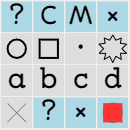
 The cell can take the values 1, 2, 6, 9 and X, but not the values 3, 4, 5, 7 and 8, which have already been excluded due to logical considerations.
 Circle Ctrl+Q
 Ctrl+A
 Square Ctrl+W
 Ctrl+B
 Point Ctrl+E
 Ctrl+C
 Zigzag circle Ctrl+R
 Ctrl+D
 Cross Ctrl+X