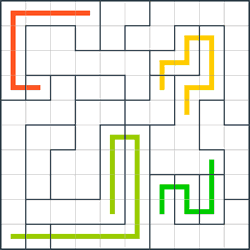
If your browser supports Javascript and Javascript is not disabled, you can solve the puzzle online interactively.
Appearance:
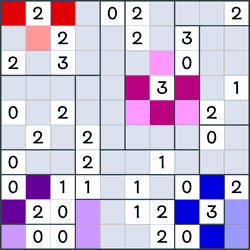
 Cell with a mine
 Cell with a two mines
 Cell with a buoy (neighbouring four mines)
 Cell on which there is certainly no mine. Marking cells without a mine with a cross is optional.
Solve puzzles:
 Left-click: Changes the cell content: cross, one mine, two mines, empty cell. Left-drag: Copies the cell content: cross, one mine, two mines, empty cell.
 Rigt-click: Dropdown menu → Markers.
 Tap: Changes the cell content: cross, one mine, two mines, empty cell. Drag: Dropdown menu → Markers. Hold: Copies the cell content.
 Use the arrow keys to move the selection frame to a cell, then: Enter, Spacebar, Ins: Changes the cell content: cross, one mine, two mines, empty cell. Shift+Arrow Keys: Copies the cell content: cross, one mine, two mines, empty cell.
Select a value directly with one of the following keys:
| Value | Keys |
|---|---|
| One mine | A, ., O |
| Two mines | 2 |
| Cross | S, ,, X |
| Emty cell | D, /, - , Del, Backspace |
 The selection frame is only displayed when you work with the keyboard, i.e., after pressing one of the arrow keys, and hides again when you work with the mouse.
Move the mouse pointer over a cell (do not click!) and choose the required value directly with the keyboard, as described above.
Error marking:
 or F6 key marks all errors, i.e., violations of the rules, in red.
Symbol marking:
Permanent:
 turn on the marking mode and select the symbol (〇, ▢, •, ⛭, ✕, a, b, c, d) to be entered in the subsequently selected cells.
Single cell:
Select a cell with the arrow keys, then Ctrl+Q, W, E, R, X, A, B, C, D. Right-click, then select symbol in the drop-down menu. Hold the finger and select symbol in the drop-down menu.
Colour marking:
Permanent:
 selects the colour with which subsequent moves are marked. Combination of Alt+0 to Alt+9 select the colour with which subsequent moves are marked.
Single cell:
Select a cell with the arrow keys, then Ctrl+0 to Ctrl+9. Right-click, then select colour in the drop-down menu. Hold the finger and select colour in the drop-down menu.
Features:
 or Home cancels all moves.
 PgDn or Ctrl+Z cancels a move.
 PgUp or Ctrl+Y restores a cancelled move.
 or End restores all cancelled moves.
 or Ctrl+S saves the current savegame.
 or Ctrl+L loads a previously saved savegame.
 or F3 switches the hint mode on and off again. In hint mode, the correct value is entered in the following selected cells.
 or F4 enters the solution in the grid and, if available, the solution path in the move list.
Enlarge/reduce the puzzle:
The puzzle can be zoomed in/out within the window: Left-click or tap: Select cell size. Rght-click or hold: Fit the puzzle to the window size ("auto"). Drag with two fingers: the grid size follows the distance between the two fingers. Ctrl+Arrow keys.
Moving the puzzle:
This is only possible if the puzzle is larger than the window or screen. Use the scrollbars. Drag with two fingers: the grid follows the finger movement. Alt+Arrow keys.
Info:
 or F1 shows information about the puzzle in a separate window. It contains, among other things, the current score and the sequence of moves that led to it.
Correct solution:
If you have solved the puzzle correctly, a green frame is automatically displayed around the grid.
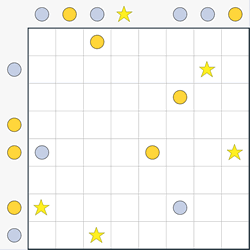
 Cell with a star.
 A cell on which there is certainly no lamp. Marking cells without a lamp with a cross is optional.
 Default numbers/letters (which cannot be changed) are shown in colours other than black; the numbers you enter are shown in black colour.
 Cell with a sun.
 Cell with a moon.
 or F7 key turn the candidate mode on and off again. In candidate mode, the list of values that a cell can take on is edited.
 Cell with a ship.
 Zombie
 Ghost
Ghost Vampire
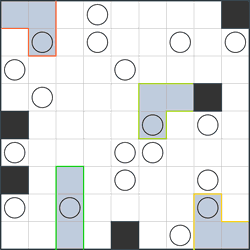
 Cell with a circle.
 Cell with a given circle.
 Cell that cannot contain a circle.
 Cell with a tree.
 Cell with a tent.
 Cell with lamp post (with two neighbouring lamps).
 Cell with a lamp